Step 1: Select Ellipse tool  and
make a shape looking like this:
and
make a shape looking like this:

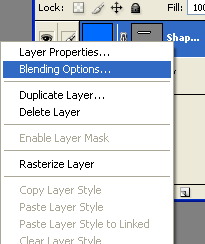
Step 2: Right click on the shape and select Blending Options:
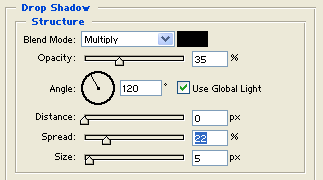
Step 3: Then click on Drop Shadow:
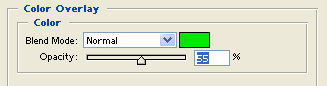
Step 4: Then select Color Overlay:
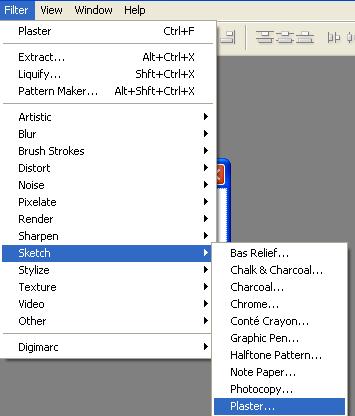
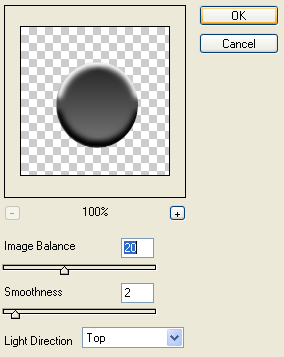
Step 5: Then go to Filter > Sketch > Plaster:
Step 6: Use these options:
Step 7: Your button is finished: