


1. Make a new document - 3x3 with a transparent background.
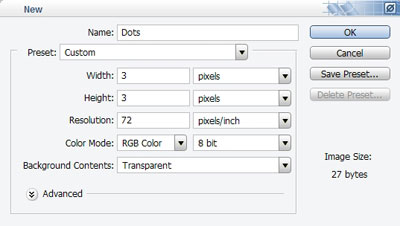
2. Pick the pencil tool and pick black.
3. Zoom in as much as possible and put a dot in the center.

4. Now go to Edit > Define Pattern.. Name the pattern dots.
5. Repeat steps 1 - 4 but instead of putting a dot in the center, do this for the grid

and this for the diagonal lines.

6. Now you have the patterns saved, open the image you want to apply the lines to.
7. Go to Layer > New > Layer.
8. Now go to Edit > Fill...
9. In the custom pattern box, choose the one you want and click ok.
10. Finally set the layer opacity to 20%
Here are the end results:



Hope this helps.
