


The final product
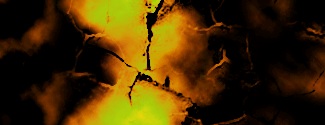
1. Create a new doc size 325x125
2. Set background col to black.
3. Go to filter-render-clouds
4. Filter-render-difference clouds (Do that until you have more white then black)
5. Filter-brush strokes-dark strokes- balance 10, black intensity 2, white intensidy 3
6. Set foreground col to black and use either of the brushes once or twice on the white areas.
7. Create new layer
8. Set background to black
9. Set foreground col to white and use either of the brushes about 2 times around the whole area. (Try not to fill it up too much with the brushes)
10. Use the eraser tool with a soft mechanical brush to erase small parts of the layer. (Don't get carried away here, just a few spots)
11. Set the layer to overlay
12. Create new layer
13. Set foreground to a solid col. (I chose red)
14. Filter-render-clouds
15. Filter-render-difference clouds
16. Set the layer to hard light
17. Go to curves and make two dots. Put the first one to 30 and 120, second one to 220 and 190.
18. Go to hue/saturation and set hue to +20.
And you should be done.
