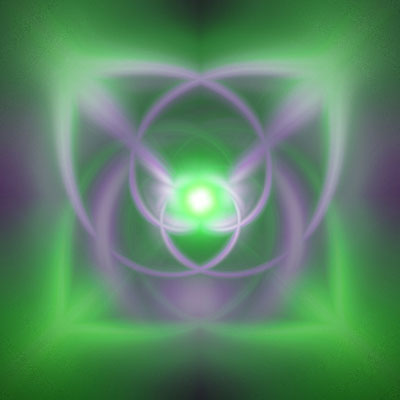
1. Open a new Photoshop document. (I used 500x500)
2. Fill it with black.
3. Filter-->Render-->Lens Flare, put one in each corner and one in the center.
4. Press Ctrl+Shift+U. (You don't have to do it. I just invented this background with this step.)
5. Duplicate the layer and set the blend mode to lighten.
6. Filter-->Distort-->twirl 500 degrees.
7. Duplicate the original layer and drag it to the top. Set the blend mode to lighten.
8. Filter-->Distort-->twirl -500 degrees.
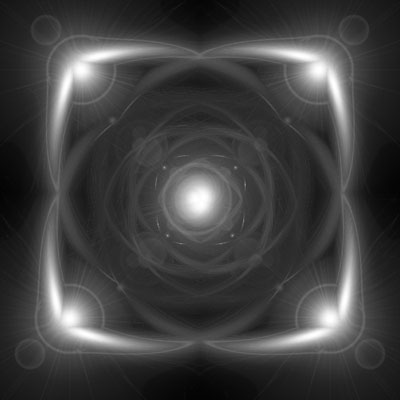
9. Merge all layers.
10. Ctrl+U to colorize image. Check colorize box hue: 110 saturation: 100 (optional).
11. Duplicate the layer and set blending mode to lighten.
12. Filter-->Distort-->Polar Coordinates click rectangular to polar.
13. Ctrl+U to colorize image. Check colorize box hue: 286 saturation: 50 (optional).
14. Merge the two layers.
15. Filter-->Blur-->Radial Blur amount: 100 method: zoom quality: best.
16. Press Ctrl+F twice.
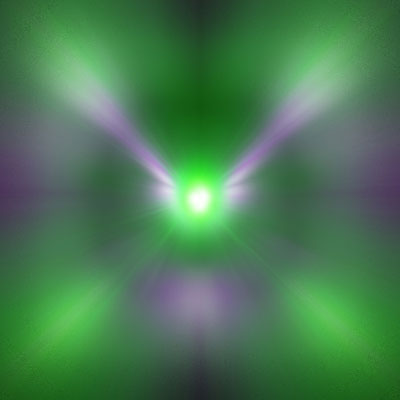
17. Duplicate the layer and set the blending mode to lighten.
18. Filter-->Distort-->Twirl 300 degrees.
19. Duplicate the first layer and set the blending mode to lighten.
20. Filter-->Distort-->Twirl -300 degrees.
Here's your result: