

1. New document 400 x400
2. Set colours to default “D” and change to the gradient tool
3. Set the gradient tool to radial and the mode to difference
4. Drag a few gradient 5-6 till you get something like this.

5. Select all Ctrl+A then copy Ctrl+C
6. Go to the channels tab and create a new channel ( alpha 1) and paste Ctrl+V
7. Return to the layers tab and deselect Ctrl+D
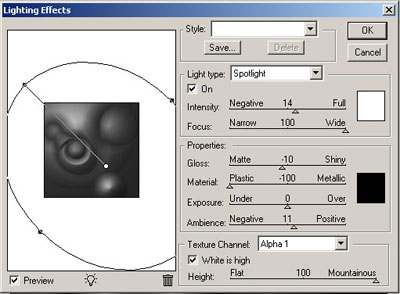
8. Filter>Render>Lightening affects
9. Add a layer fill it with a pattern and set it to overlay.
You can substitute stages 2, 3 and 4 with render clouds for rock texture :/
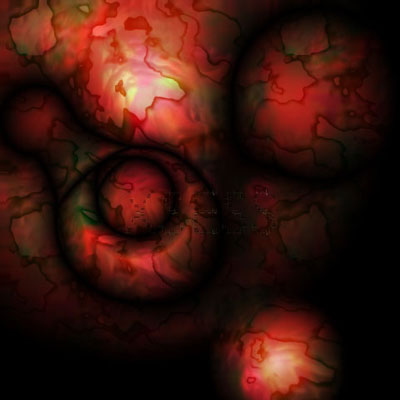
Click to enlarge
