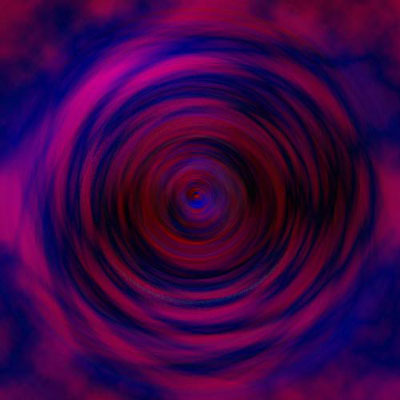
Here's similar to what you should get:
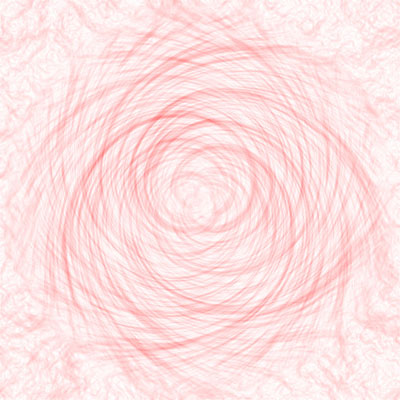
That is really easy to do actually.
1. Open a new file, any size works, but I think keepin' it a square helps personally.
2. You can fill your background if you want, up to you.
3. Filters > Render > Clouds OR Difference Clouds. It really doesn't matter as to which you use.
4. Filter>Distort>Twirl the layer, 400.
5. Duplicate this layer.
6. Filter>Distort>Twirl layer -400 twice. (One to get it back to normal, then one to twirl it. You could also just go -800)
7. Filters > Stylize > Find edges. Do that to both layers.
8. Change Blending Mode of the top layer to Multiply.
9. Invert the colour's if you want, or use hue/saturation
That's it really. Heh You can fool around with it and add a layer above it with some colour.
After foolin' around with it a bit, I got this.