Open a new window with size of 500x500 pixels, 300 resolution, RGB color.
Fill the background with black color. Go to Filter>Render>Lens Flare and click on the corner of your image and apply these settings:
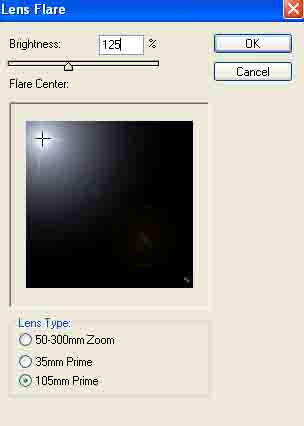
That is what you got now:
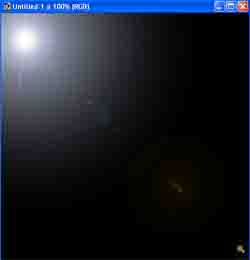
Do the same thing for each other corner. That is what you should have now:
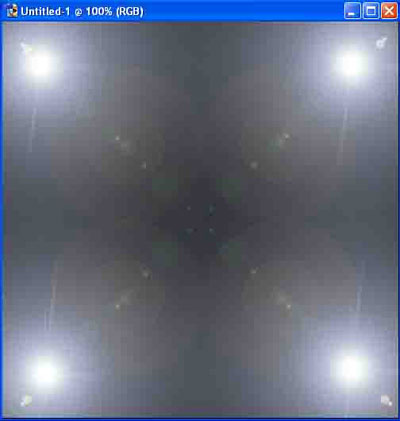
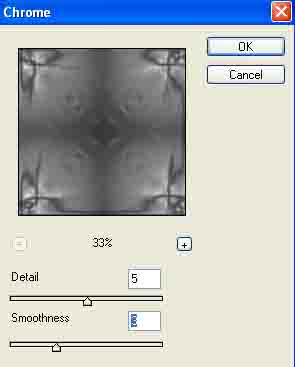
Go to Filter>Sketch>Chrome and apply these settings:
Now select your image by Ctrl+A and go to Image>Adjustments>Hue/Saturation.
Do not forget to click on the check box "Colorize".
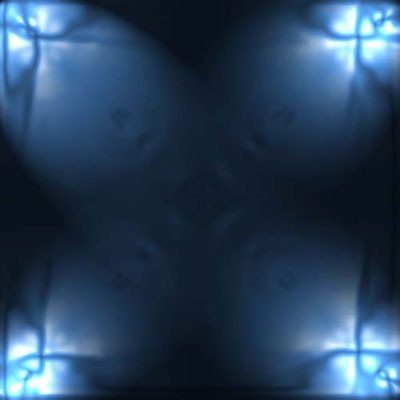
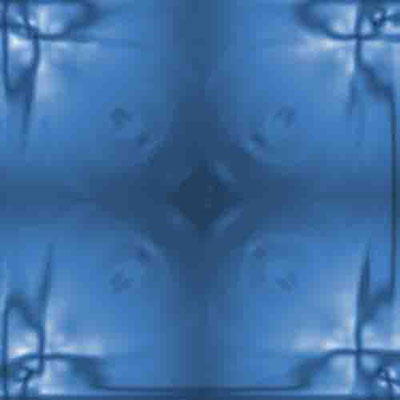
Apply any settings you want. I prefer light blue. What you have now should look like this now.
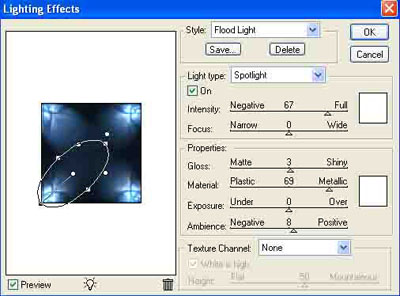
Go to Filter> Render> Lighting Effects and apply these settings (doesn't have to be the same exactly).
You are done!