How to draw a simple picture putting it on a stylish background:
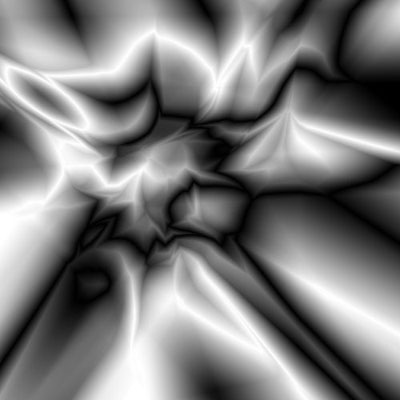
1. Start off with a new document (500px by 500px) and press D for default color settings. Choose the Gradient tool (G) and set the Mode to Difference go crazy with the gradient all over the page so it looks something like this:
2. Using the eraser tool with a brush size of 60-70, erase the picture into the gradient background. choose Filter>Stylize>Find edges:

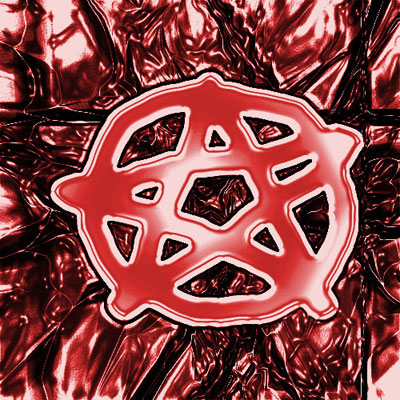
3. Go Filter>Artistic>Plastic Wrap, the default settings are fine. Ctrl+L to bring up the levels adjustments, or go Image>Adjustments>Levels. slide the middle arrow over so the middle level number box reads 0.25. It should look like this:

4. Finally the color. Ctrl+U to change the Hue/Saturation settings: (make sure the 'colorize' box is checked) the saturation level should be about 60, change the color settings to your choice.
Done. Your picture should look something like mine: