Step 1 Make a new image and fill the background layer with black. Go to filter>texture>patchwork and use square size around 10 and relief of about 8. It won't appear to do anything, but we'll bring out the stones in the next step.
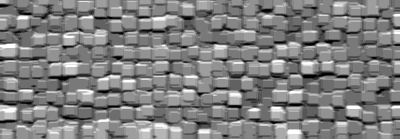
Step 2 Go to image>adjustments>auto levels and you should see the stones come into view. You can also use image>adjustments>levels if you want to control for yourself the levels.
Step 3 Get out the text tool and choose a thick font. Write whatever text you want.

Step 4 Now ctrl-click the text layer to make a selection of the text. Click on the background layer and press ctrl-c to copy, ctrl-n to create a new image (hit OK), and finally ctrl-v to paste.

Step 5 Now all that's left is some blending options. Adjust them to taste. I used a default drop shadow, a 1px black inner stroke, and a chisel hard bevel.

Step 6 Optional Step: Duplicate the layer and set the blending mode to color burn. This will give you a grungy 'black metal' sort of text.