Step 1 Create a new image and fill it with black. Then type some text with the text tool, be sure it is large and bold.

Step 2 Rasterize the layer by going to layer>rasterize>type.
Step 3 Go to filter>distort>polar coordinates and select polar to rectangular.

Step 4 ctrl-click the text layer to select it, press d to go back to the default colors, then go to filter>render>clouds.

Step 5 Go to filter>noise>add noise and use about 15%. Be sure gaussian and monochromatic are both checked.
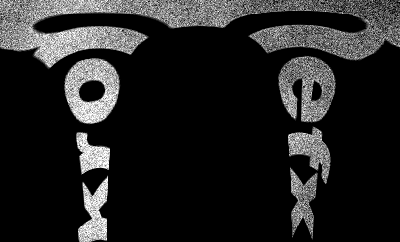
Step 6 Now go to filter>brush strokes>angled strokes and use direction balance: 44, stroke length: 20, sharpness:7.
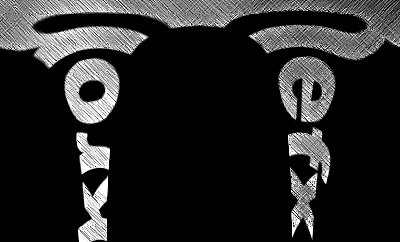
Step 7 Go back to filter>distort>polar coordinates but this time select rectangular to polar. This creates the basis of the fingerprint on the text.

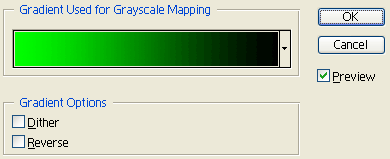
Step 8 Go to images>adjustments>gradient map and adjust the gradient. There are of course many phosphorescent colors, but I choose green. Just make sure whatever color you want to glow is the left most color. Make the gradient look something like this:
Step 9 Add an outer glow with whatever color you chose for your phosphorescent glow.

Step 10 If you want even more of a glow, duplicate the layer and set the blending mode to linear dodge. Your text should now closely resemble the phosphorescent glow of some fingerprint powders like they use on those forensic shows.