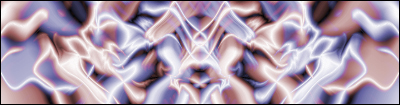
This is really easy and I think it makes a nice effect.
Step 1 Select your gradient tool, Make sure it isn't hiding under the paint bucket tool. Make sure that you have these options applied.

Step 2 First make sure you have white background - press D to reset the color. And go crazy with the gradient tool, go all over the picture 10-20 times until you have something like this.
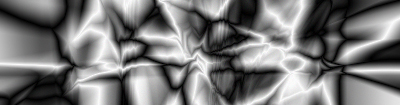
Step 3 Select your wave tool, it is in Filter / Distort / Wave.

Now press randomize
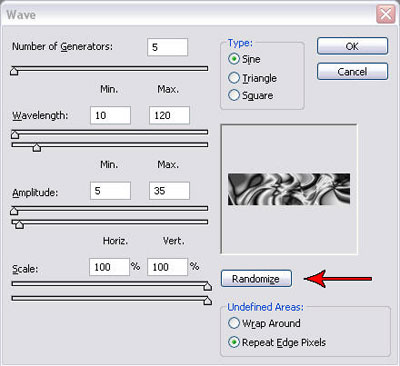
--- I got this ---

Step 4 Duplicate the layer. Right click on the layer and press duplicate, then ok. Double click on the background layer and press ok. It will be renamed layer 0.
Step 5 With the topmost layer selected go to Edit > Transform > Flip Horizontal and change the top layers blending option to lighten. The blending mode options are located on the top of the layers palette.
Step 6 Now you can mess around with the image and do what you want with it. Try coloring each layer different colors and so on.
Have fun!!!