Create a new 500x500 document.
Select gradient tool->radial gradient (mode multiply)
Now create circles in left side of document, smth like this.

Invert.
Filter>Artistic>Plastic Warp (14 8 8)
Filter>Distort>Ripple (large 100%)
Filter>Distort>Pinch (100%) twice.
Now Hue/Saturation and chose any color.
Duplicate layer, then flip horizontal.
Change blending mode to lighten.
Now merge layers and duplicate layer.
Flip vertical and change blending mode to lighten.
Duplicate layer.
Now Filter>Distort>Polar Coordinates (rectangular to polar)
Change mode to lighten.
Merge layers, duplicate layer, polar coordinates again.
Change mode to lighten, apply polar coordinates (polar to rectangular)
Duplicate layer, flip vertical, change blending mode to lighten.
Hue/saturation to adjust color.
Optional part:
Now select left half of image
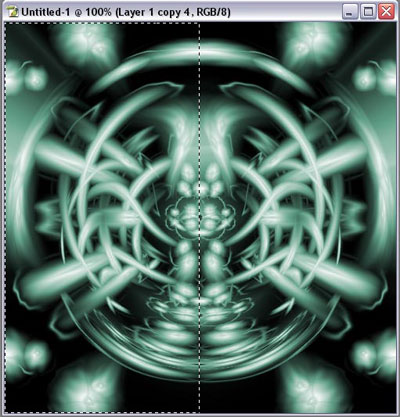
Filter>Stylize>Wind (from the right) do it twice.
Select inverse.
Filter>Stylize>Wind (from the left) twice.
Merge layers.
Duplicate layer.
Flip vertical.
Change blending mode to lighten
Merge layers.
Select middle of image like this:
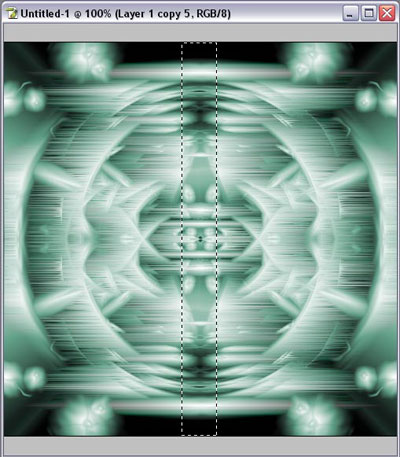
Filter>Blur>Motion Blur angle 0, distance 4.
Deselect.
Now, Filter>Blur and hue saturation to adjust color.
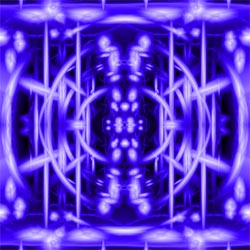
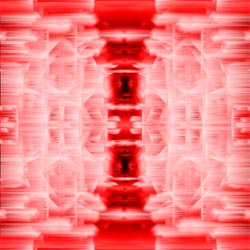
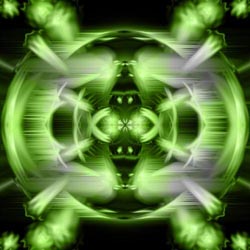
I got those results: