


1. Make a new 500x500 image.
2. Filter -> Render -> Clouds.
3. Filter -> Render -> Difference Clouds.
4. Duplicate the original layer.
5. On the new layer go to Filter -> Render -> Fibers. Use 23 Variance and 4 strength and you should get something like this
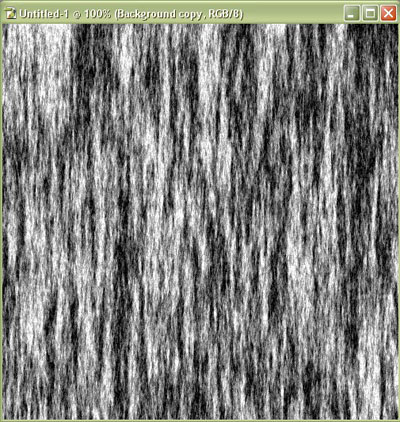
6. Change the blending mode to color dodge
7. Press Ctrl + E to merge the layers.
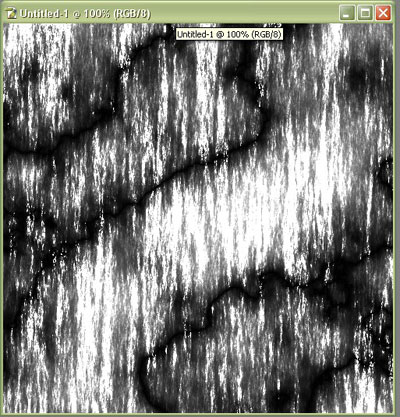
You should have something like this.
8. Ctrl+U, click "colorize" and use hue: 220 Saturation: 60 lighten: 0 or any other bluish color.
9. Now, select Filter -> Distort -> Zigzag. Amount: 22 Ridges: 7 and the Style set to Pond Ripples
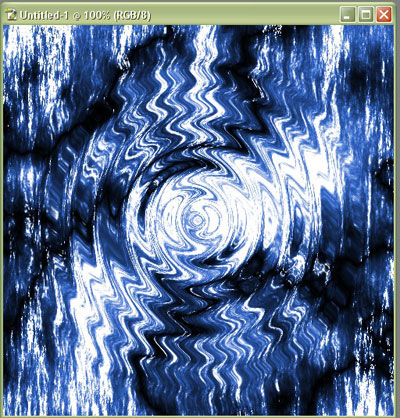
10. Filter -> Pixelate -> Fragment
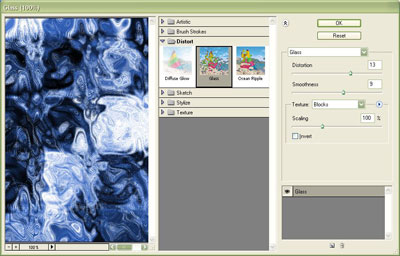
11. Now, Filter -> Distort -> Glass with the following settings.
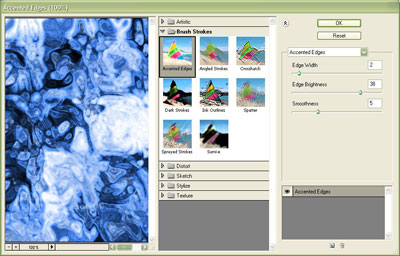
12. And finally Filter -> Brush Strokes -> Accented Edges with the following settings.
All done. If all went well you should be looking at something similar to this
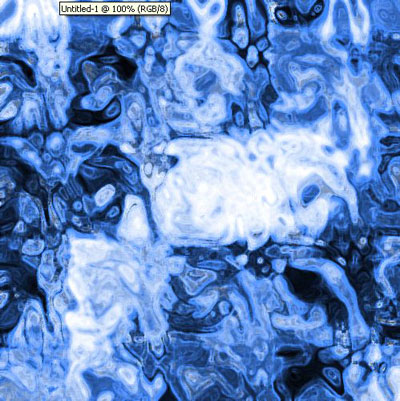
Sometimes it takes a couple times to get one just right. The best things to mess around with are the glass and accented edges filters. Using 1 for edge width for accented edges filter gives a nice look, but makes it look like more something you see under a microscope then a landscape.
