


1. Open up a new document whatever size. I used 1024x768 for my personal background on my desktop..
2. Press "D" to reset colors to black and white.
3. Switch to your gradient tool and do a little design similar to that, just get to about 10 bars on there. Doesn't matter what color you use black or white - just press CTRL+I to invert the colors.

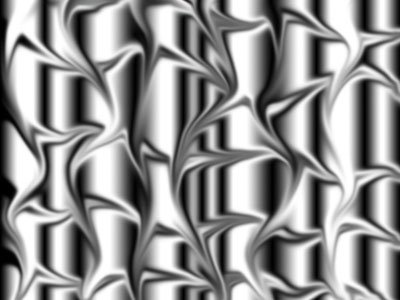
4. Grab your smudge tool and do draw waves like so. First draw your horizontal (left to right) waves then your vertical (top to bottom) waves...your design should look like so or similar.
5. Go to color balance. Use any setting you want to but i used:
midtones: +100, 0, -50
shadows:+100, +50, -100
highlights: 0, 0, 0
I was messing around with these setting also and got this:
midtones:-100, -100, 0
shadows: -100, -75, +100
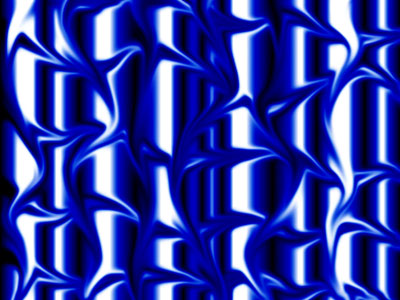
6. You got a wavy looking background...
