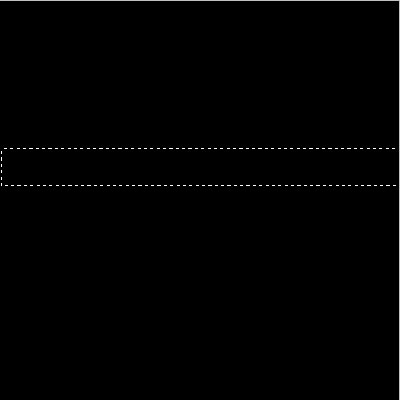
1. Open up a 500x500 document and create a new layer, select the marquee rectangle tool and select a selection that looks like this.
2. Select the gradient tool and start from the top to the bottom in the selection box with these colors


3. With the eraser tool, select the 'mode' as Pencil and choose the pencil tool for 1 pixel.
Start to erase parts of the image evenly so you have boxes to work with.
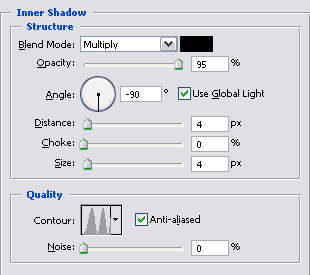
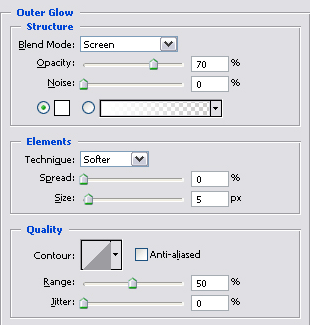
4. Right click on the layer on the layers panel and click on the blending options.
Use these options
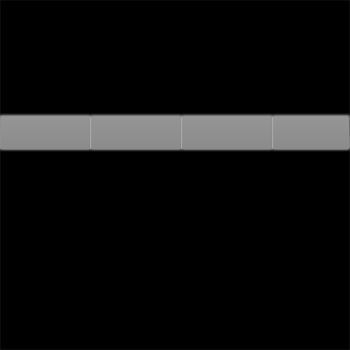
5. After you're done that, your picture should look like this

6. Now you have to select a color, you can either CTRL + U and change the bars around or go to Image -> Adjustment -> Color Balance
With some other details I added, this is what I have.

