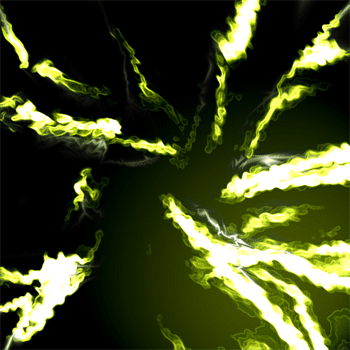
1. Make a 600x600 White document
2. Create a new layer and choose the gradient tool with these settings

Click to enlarge
3. Go crazy with it and make a design like this, make sure it has some ridges in the picture
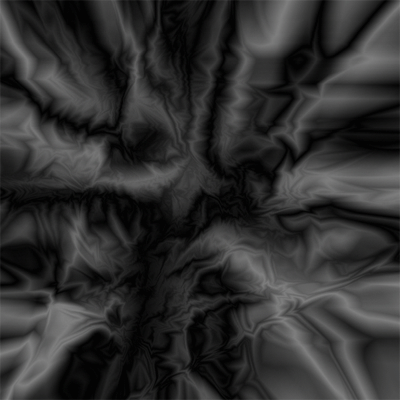
4. Press CTRL + L and click on auto and use these settings
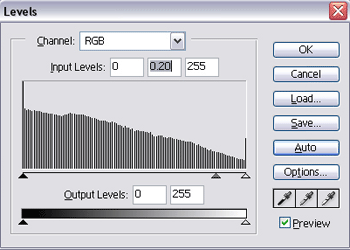
5. Duplicate the layer and go to Filter -> Distort -> Ripple and use the default settings, do it around three times and change the blending mode into Pin Light
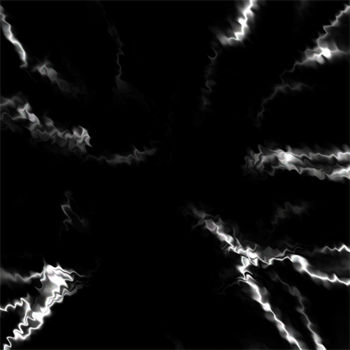
6. Change the duplicated layer color to anything you want. I Chose 70 Hue and 30 Saturation and do the same for layer 1
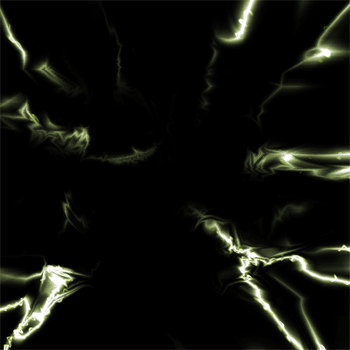
7. On both layers, Filter -> Distort -> Pinch and use 100 for both layers
8. For Layer 1 or 2, I chose 2 go to Filter -> Brush Strokes -> Accented Edges