1. Start by making a new document any size. (I used 400 x 400)
2. Now grab your custom shape tool
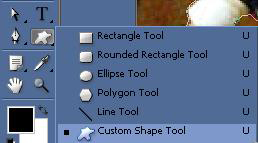
and select a shape you like i will choose a diamond shape.

3. Next Make a new layer. (shift + ctrl + N)
4. Place the shape on the layer however big you wish.
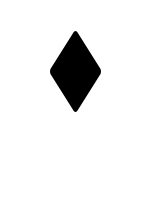
5. Duplicate the layer and place it somewhat like this.

6. Repeat step 5 and place it somewhat like this.

7. Now select the first shape you make and go to Layer > Layer Style > Blending Options and use the following.
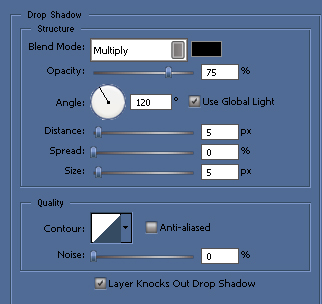
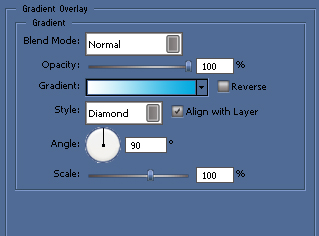
8. Now select the second shape you make and go to Layer > Layer Style > Blending Options and use the following.
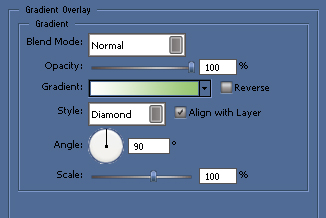
9. Now select the third shape you make and go to Layer > Layer Style > Blending Options and use the following.
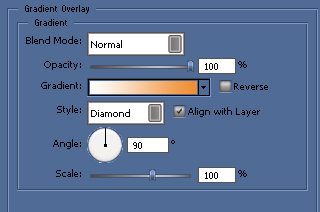
Now just add some text and your done.
Final Image: