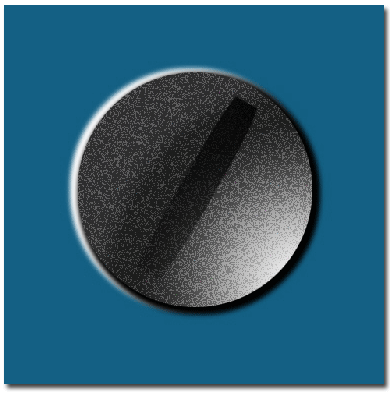
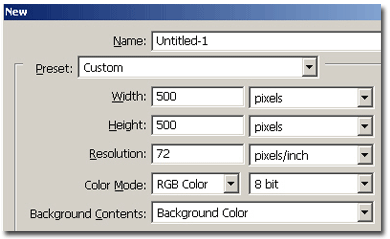
Make a new document, 500x500 pixels, blue background
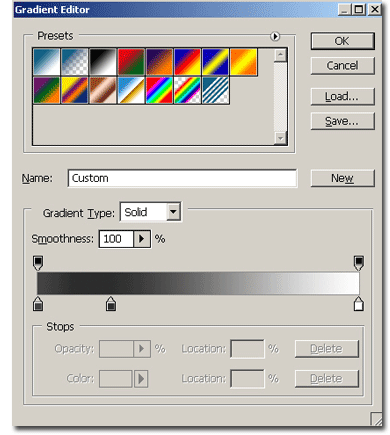
Using the elliptical selection tool, create on a new layer a perfect circle. Now using a gradient like in my example, fill this selection. You should come up with something similar:
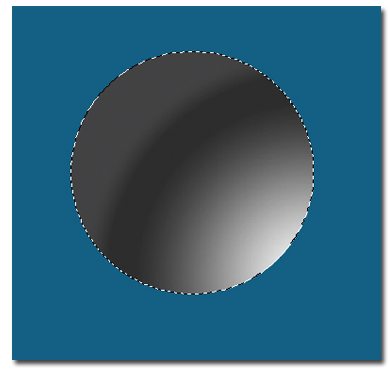
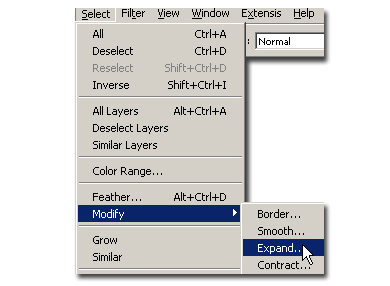
Go to Select > Modify > Expand and expand the selection with 5-6 pixels. With the selection still active, make a new layer and put it under the gradient layer. Rename it "shadow 1" and fill it with white. Again, make a new layer, rename it "shadow 2" and fill it with black.
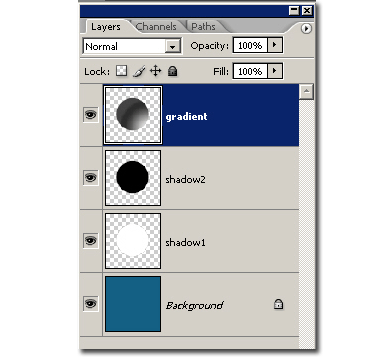
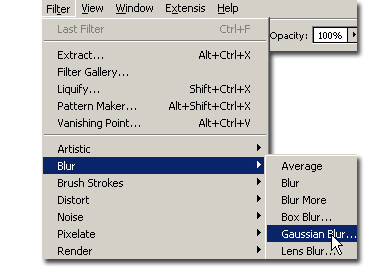
Now deselect and go to Filter > Blur > Gaussian Blur and apply a gaussian blur of 3 on both the "shadow layers".
Now with the move tool, we will move the white shadow a little to the left and the black shadow to the right. You should see something like this. You're done

I've added a mezzotint filter and faded it a little to make a screw.