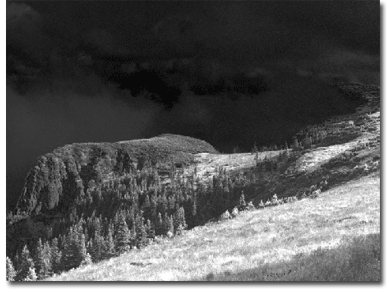
Open the image you would like to make infrared, double click the Background layer to unlock it.
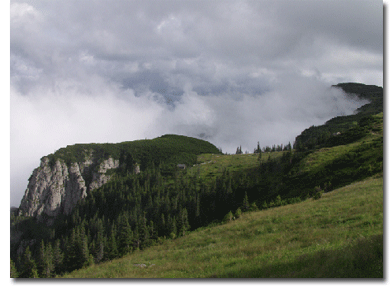
Press CTRL+Shift+L or go to Image > Adjustments > Auto Levels and let Photoshop correct the levels in your photo.
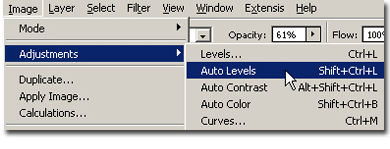
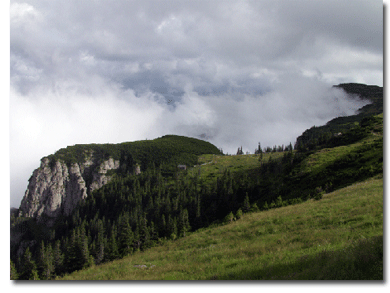
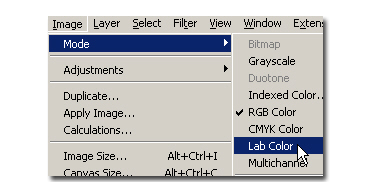
Now Go to Image > Mode > Lab Color to make the photo in Lab mode
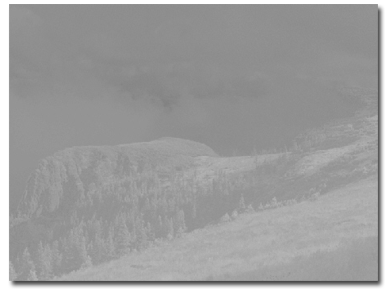
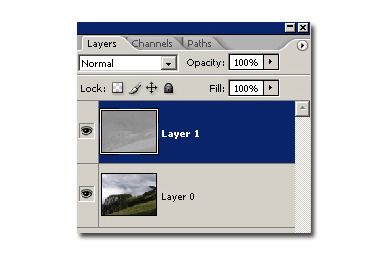
Now go to channels, select B Channel, press CTRL+A (to select the entire layer) and press CTRL+C to copy it. Now go back to layers and paste your B channel.
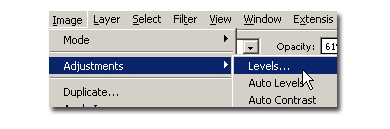
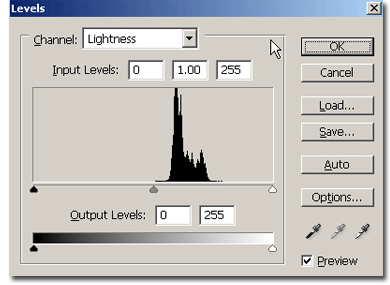
Now press CTRL+L or go to Image > Adjustments > Levels to bring the levels dialogue.
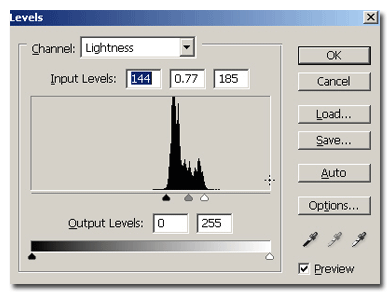
Now correct manually the levels by dragging the sliders. In my example I show you the levels before and after.
You're done: