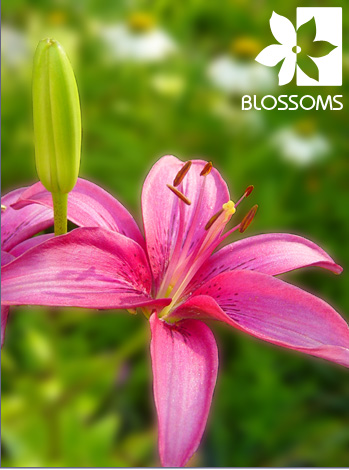
At times you like some element or person to stand out from rest of the elements in a photograph. This can be achieved by defocusing unwanted or less important elements in the background.
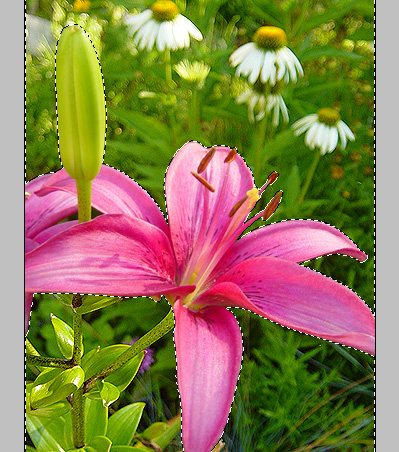
We'll start by opening a flower shot. In this image we'd like our pink flower to stand out. We'll defocus the leaves and others flowers to achieve the required effect.
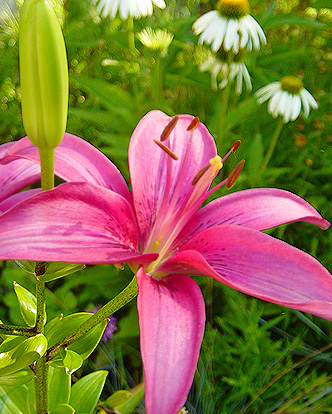
Use lasso tool (L) to create a rough selection surrounding the pink flower.
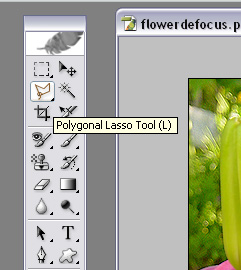
You can smooth out the selections by applying feather (Ctrl + Alt +D)
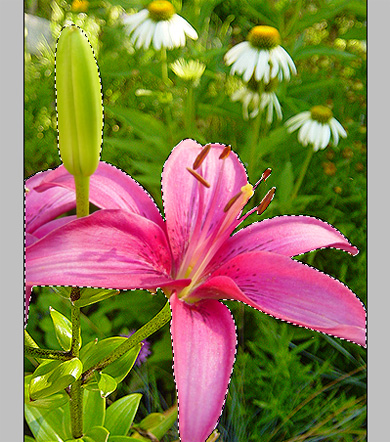
From select menu click inverse ( Ctrl + Shift + I ). This will invert the selection.
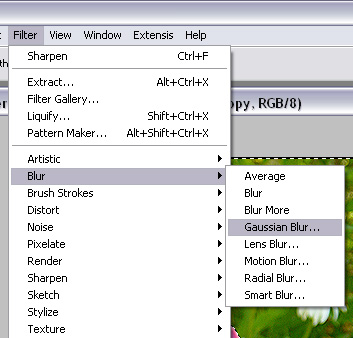
From filter >> blur>>gaussian blur.
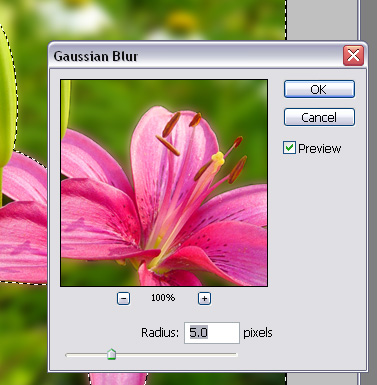
Use radius setting to achieve the proper amount of defocusing.
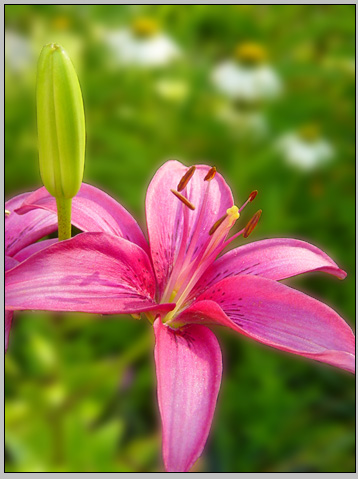
The background is defocused now making our pink flower to stand out.
Add your company logo and use it for your flyers, calendars or website home page.