


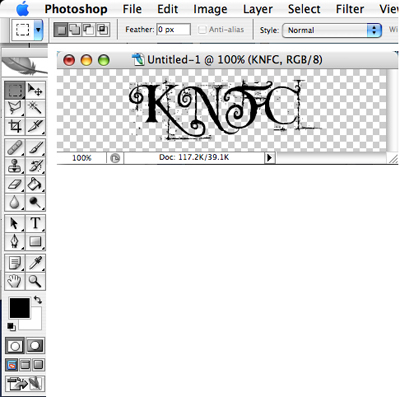
1. Make a new image, 400x100 RGB
2. Grab the text tool and set the color to black. Type your text.
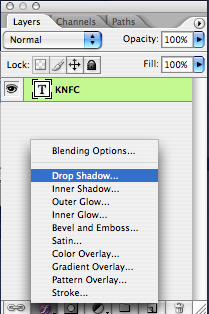
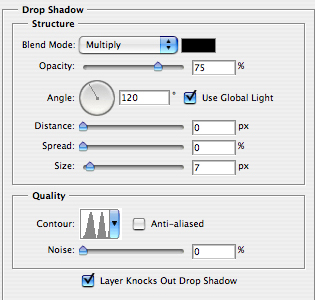
3. Click on the Drop Shadow effects and use these settings, along with these other settings:
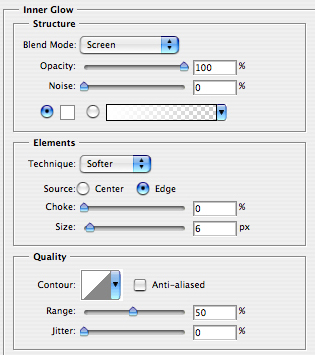
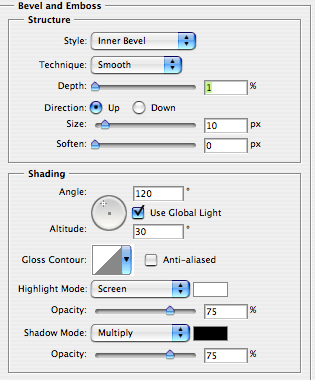
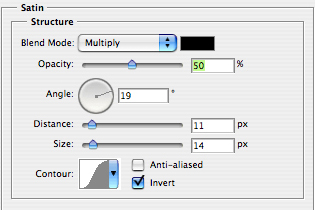
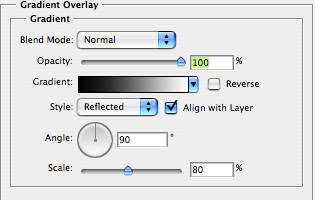
You should have something like this:
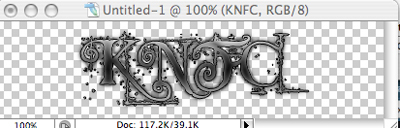
You can adjust the opacity on the inner glow and satin to fit your needs.
