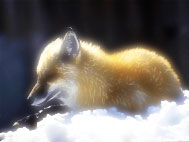
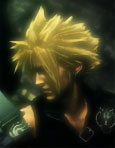
First open the image of your choice.
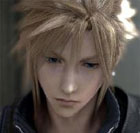
Then, Duplicate the image and set the mode to Overlay. Then flatten the image. It should look like this.
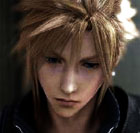
Duplicate the image again, and go to Filter > Blur > Gaussian Blur. Use a settings of around 4-5 pixels. You should end up something like this. Do not merge the layers.
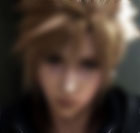
Now, set the blurred layer to "Lighten". You should end up having a nice "angel" effect. Duplicate the blurry layer again and set the mode to screen for bright results.
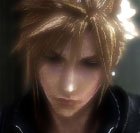
Here are some more examples of what this tutorial will produce: