

This tutorial will teach you how to add a cool effect to focus in on action while blurring the rest of the scene around it.
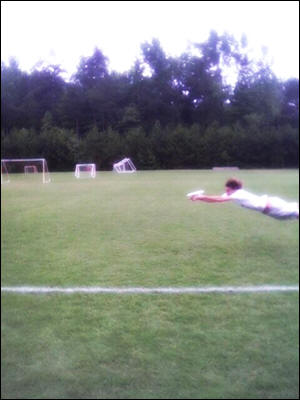
1. Open up the document that you want to add the zoom effect to. I will be using a picture of someone diving for a frisbee:
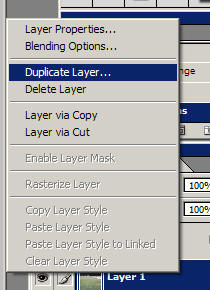
2. Duplicate the layer that you want to add the zoom effect to. To duplicate this layer, right click on the layer, and select duplicate layer:
3. On your new layer, add a Radial blur. Go to Filter > Blur > Radial Blur. You should be setting it up as follows:
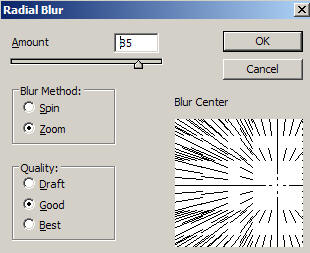
Notice how the center of the Zoom blur has been moved in the image above. I want the center to be directly over the part of action I will be focusing in on (The dive), so I dragged this point to the right a little bit.
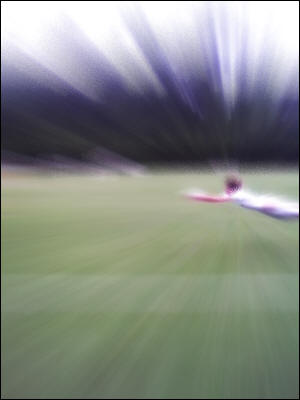
4. Click OK, and you should now have something a little like what is shown below:
5. Now its time to make it look like we are focusing in on the center of action. Select your eraser tool (
 ), set the brush size to around 200-300, and the hardness of the brush to 0%. Place the eraser tool over the center of action, and erase a small portion of your zoom blur layer:
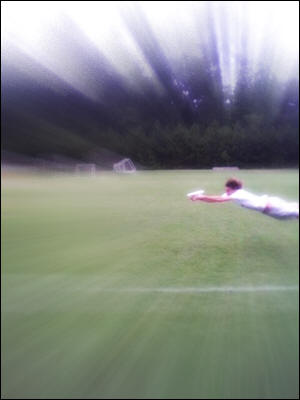
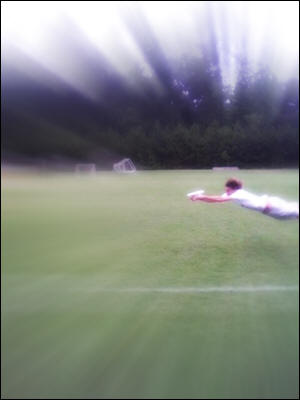
6. And that's it! If you notice that your zoom layer is a little pixelated in some areas (kind of like noise), add a Gaussian blur of 1-2 in to smooth things out (Filter > Blur > Gaussian Blur).
Good Luck!
