


Learn how to make a really cool looking flashy portal effect! Very Easy Method!
Create a new document. My document was 500x500px but yours can be diffrent.
Fill your document with black color. Now do: Filter->Render->Diffrence Clouds
Repeat this step by pressing CTRL+f a few times until you have a nice balance.
Now do: Filter->Blur->Radial Blur with the following settings:
Amount: 100
Blur Method: Zoom
Quality: Best
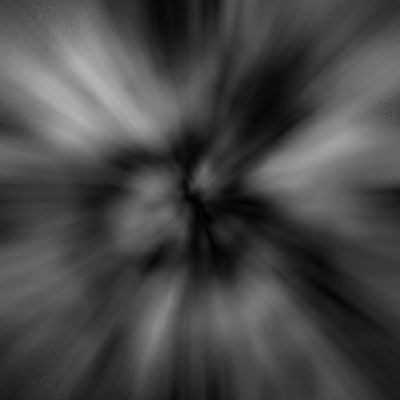
Now you should have something like this:
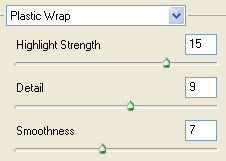
Now, do: Filter->Artistic->Plastic Wrap with the folowing settings:
The results:
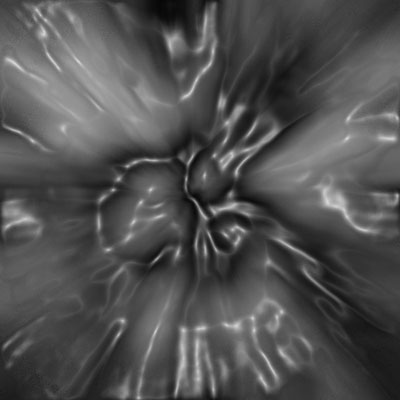
Now, do yet another Filter->Blur->Radial Blur with these settings:
Amount: 100
Blur Method: Zoom
Quality: Best
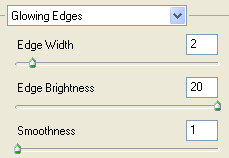
Then do: Filter->Stylize->Glowing Edges with the following settings:
Almost done, now we just need to give it some color. Press CTRL+u, click colorize and go select a color.
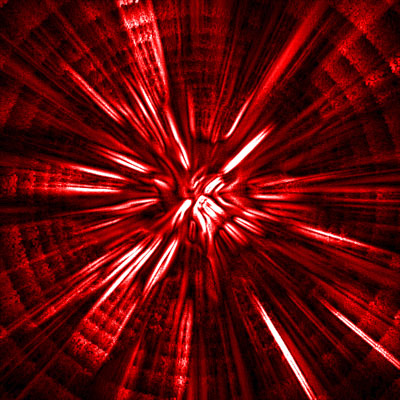
You are done now. This was my result:
I hope you enjoyed my tutorial.
