Create a new image. My image was 300x300 but yours can be different. Press D to reset the colors. Fill the background with White.
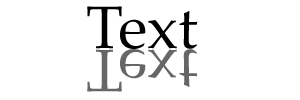
Use your text tool to type something. I typed Text . Duplicate the layer. Click Edit->Transform->Flip Vertical . Click Rasterize Layer on the vertically inverted layer. Drag the text right below the normal text. Lower the layer opacity to 60% .
It should look similar to this:
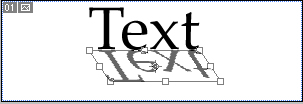
Click Edit->Transform->Distort Distort the image like this:
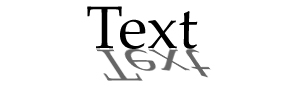
Press enter. Your realistic drop shadow is done, enjoy!
My result: