


1. Open up the picture that you are going to age. I will be using a picture I took of an old alley:
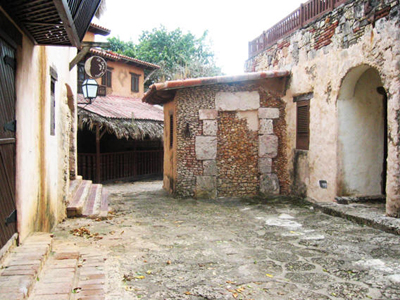
2. Select a dull yellow/orange as your foreground color, and white as your background color. We will use these colors in a gradient map to replace all of the current colors:

3. Go to Image > Adjustments > Gradient Mask. Click OK:
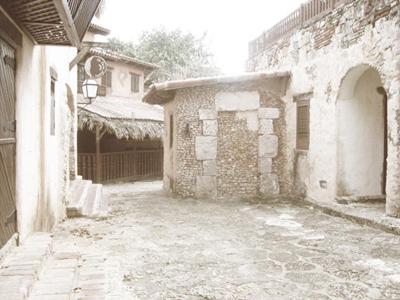
4. As you can see, all color has been replaced by our foreground color and white making it seem desaturated and older. Create a new layer, and set the blending mode to Multiply. Using this foreground color and grunge brushes, begin to brush the edges of the picture:
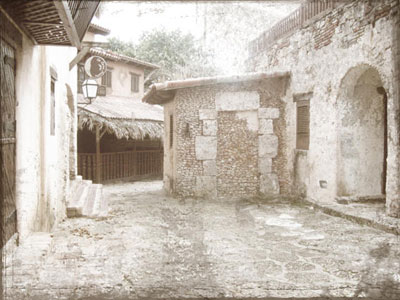
5. This will create darker marks along the edges of the photograph much like a real old picture. Continue to apply until you are satisfied with your results:
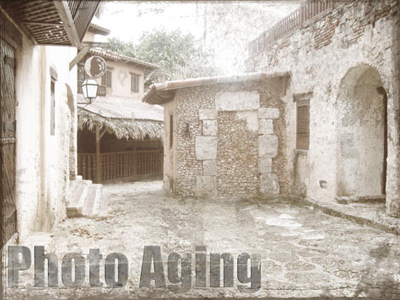
Good Luck!
