


1. Create a new document, fill it with a black background:

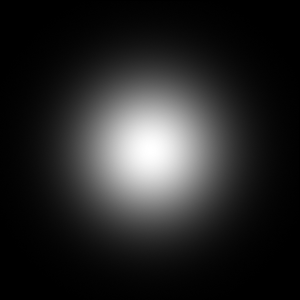
2. Create a new layer, and with a large white brush, make a dot in the center:
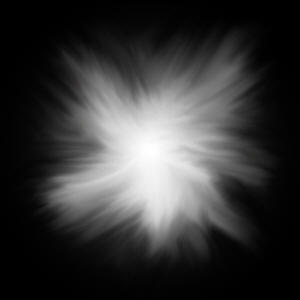
3. Using the smudge tool, drag inwards and outwards on the dot until you have an effect that looks like shown below. I would recommend a fairly large brush while you do this step:
4. Create another layer. Grab your gradient tool from the tool bar:
5. Click the gradient in the top left of your screen to edit your gradient:
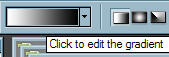
6. Set up your gradient so it looks like this:

7. Click ok, and drag a gradient across your image:

8. Set this layer to Overlay:

9. Now, go back to the layer with your white in it. Using the eraser tool and a rough brush at 5-10% opacity, start erasing parts of the abstract to give it more texture:

Good Luck!

Other results
