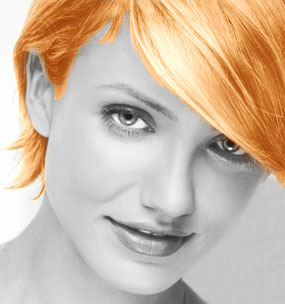
1. Open an image.
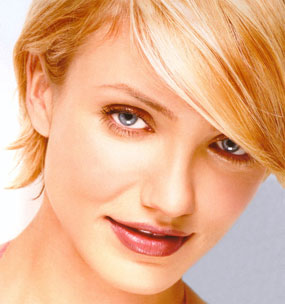
2. Change it to gray scale using Image > Adjustments > Desaturate
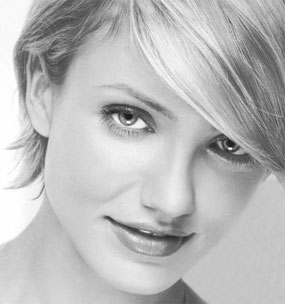
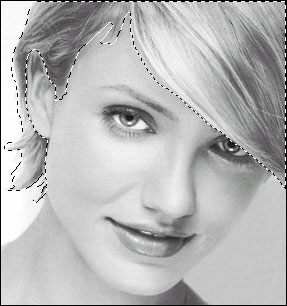
3. Select hairs using Quick Mask Mode Technique. Learn it in detail from Quick Mask Mode Tutorial.
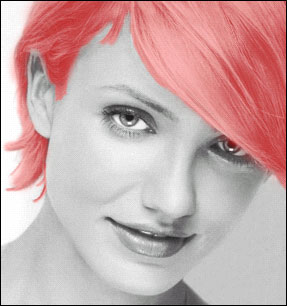
4. You will get the following selection.
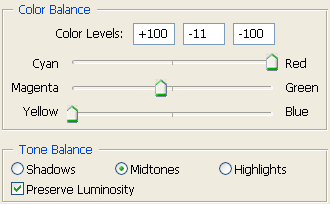
5. Layer > New Adjustment Layer > Color Balance
6. Click OK and you will get Color Balance box. Move the sliders to get following values for Midtones.
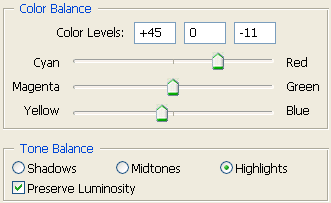
7. Select Highlights and move the sliders to get following values for Highlights.
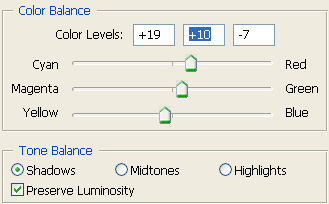
8. Select Shadows and move the sliders to get following values for Shadows.
9. Try to match the color with original and experiment using different values.