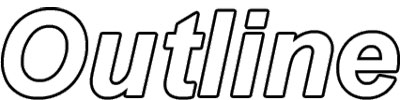
1. Here's a simple trick to create Outlined/Border Text.
First, select the 'Type Tool (T)' on the Tool Bar, and click and type the necessary text onto the canvas.

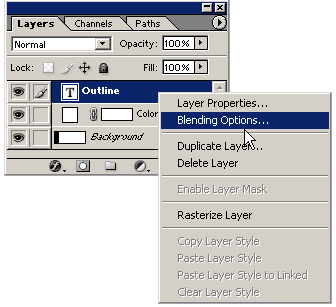
2. Next in the Layers Palette, right click on the new Text Type Layer, and from the menu list, choose 'Blending Options'.
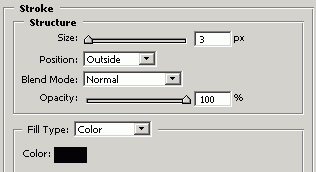
3. From the Blending Options Layer Style Panel, all I selected was the 'Stroke' option. Select from the options I have captured to the right.(Color= #000000 [Black])
Then choose OK.
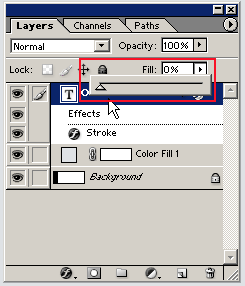
4. Back to the 'Layers Palette', set the 'Fill' Opacity level to 0% as I have captured. (Drag the slider to the far left, as I have boxed in red.)
Note:
The Opacity Option sets the Master opacity for the layer. Simply meaning, it applies opacity to the layer and all underlying Blending Modes & Styles.
The Fill Option sets the Interior opacity for the layer. Simply meaning, it applies opacity to the master layer only, ignoring underlying Blending Modes & Styles.
5. So by using the Fill option and a simple 'Stroke' Style, its easy to create Outlined text.