
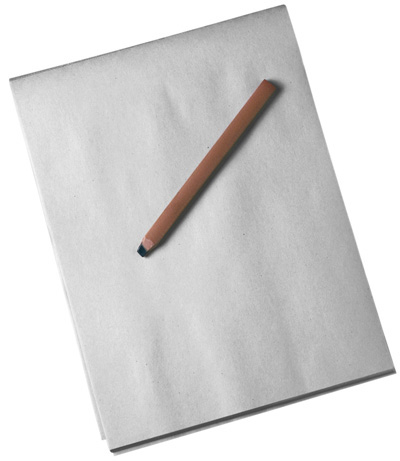
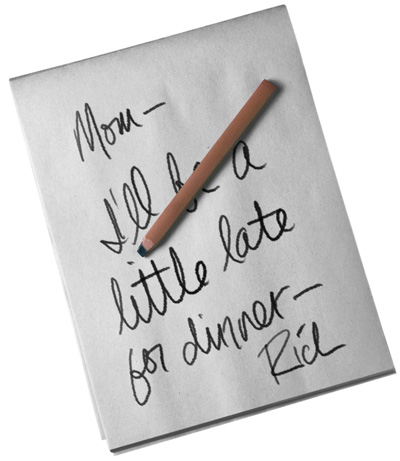
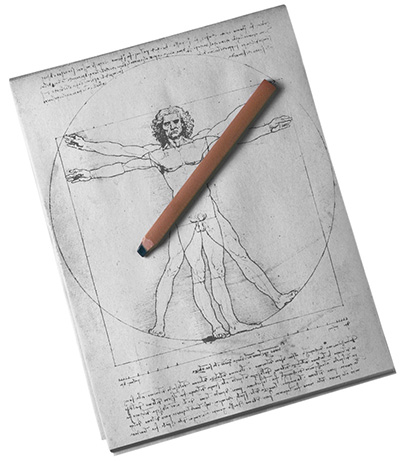
Take Photoshop, the pen tool, and a photo of a pad of paper and a pencil, and you can leave Mom a digital note, or make a quick sketch. (Photo courtesy PhotoSpin.com)
Step 1
Start by creating a pen path around the pencil. Don't include the pencil's shadow. (If you have trouble seeing the edge of the pencil in the shadow, use a Levels adjustment layer to bump up the contrast, then delete the adjustment when you're finished with the path.)
Step 2
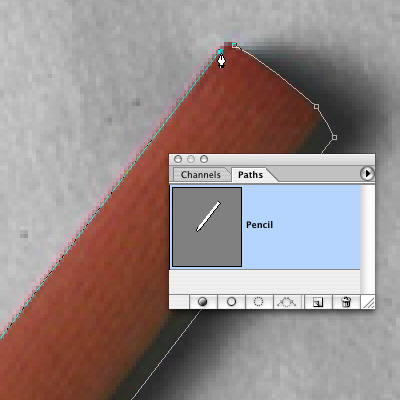
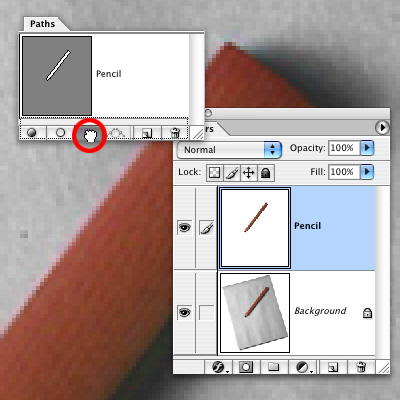
Select the pencil path by dragging it onto the Select Path icon on the Paths palette, then hit command-J (Mac) or control-J (PC) to copy and "jump" the selection to a new layer. Name this layer Pencil.
Step 3
Tap on the first snapshot (Skier.jpg) to change the blurred image back to a sharp one. Next, tap in the little square directly to the left of the Blurred snapshot- you'll see a paintbrush appear. That lets you know that you're painting from the Blurred snapshot.
Step 4
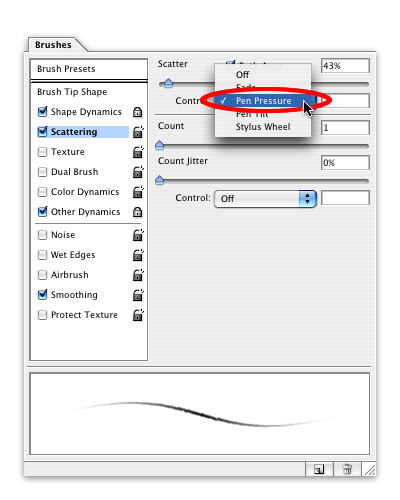
If you're using a Wacom pen, here's a tip for imitating the look of a number 2 pencil. Choose the 11 pixel Chalk brush, then open the Brushes palette. Set the Brush Size (under Shape Dynamics); Scatter (under Scattering); and Opacity (under Other Dynamics) to react to Pen Pressure. I used a Scatter of 43% here.
Step 5
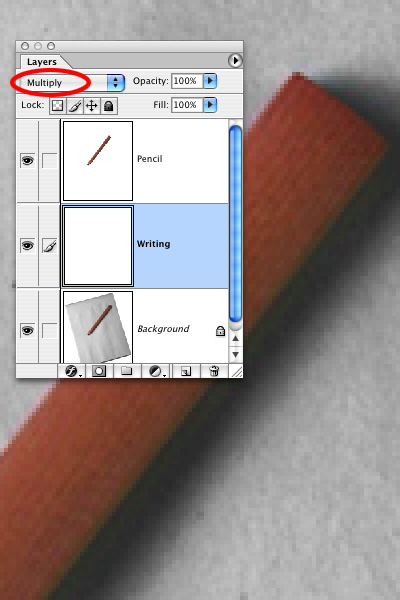
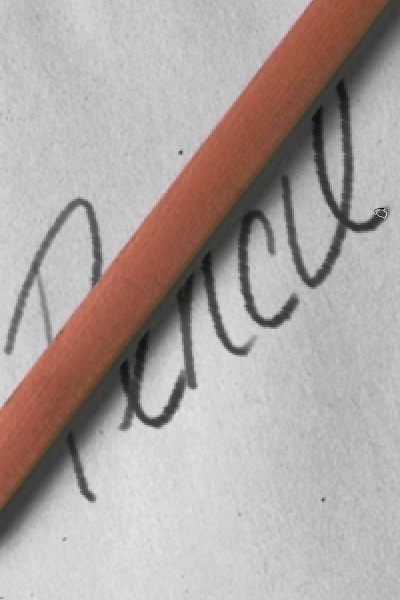
IWrite your message on the Writing layer. The Multiply blending mode lets the shadow of the pencil show through the writing.
Step 6
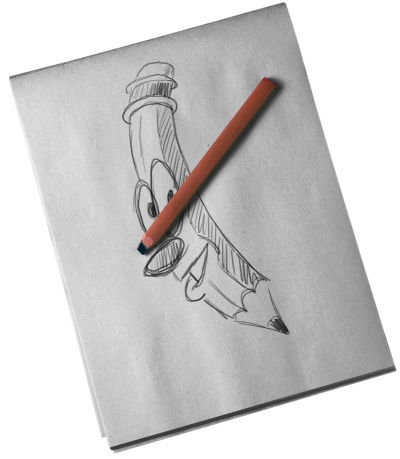
So go ahead - write a note, draw a cartoon, or try your hand at sketching like Da Vinci.
 Rich Harris is a designer, illustrator, and teaches classes in Photoshop and Illustrator to teenagers for Saturday Academy and to graphic design students at Mt. Hood Community. He also plays a mean jazz trumpet, and can be reached at