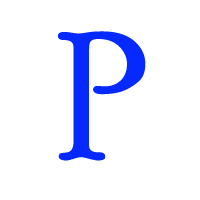
1. There are plenty of plastic text tutorials all over the web, but this one is a bit different. Ideal for beginners, this tutorial uses some of Photoshop's effects and filters, and is designed to work in under 3 minutes!
Take some text in any colour on any sized canvas. Bear in mind though, the bigger the better; we can always scale back down.
2. Now go Layer || Layer Style || Bevel and Emboss, and use settings similar to these:
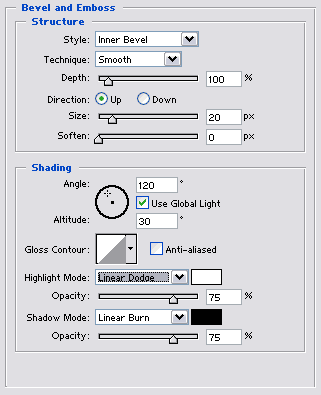
The size of the bevel will depend on your image size - this one was for an 800x800 canvas.
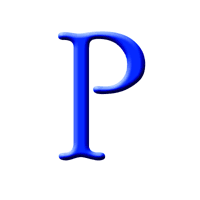
3. Merge all the layers (or just the ones relating to the text). Now go Filter || Artistic || Plastic Wrap, using settings of 12, 15 and 15 respectively.

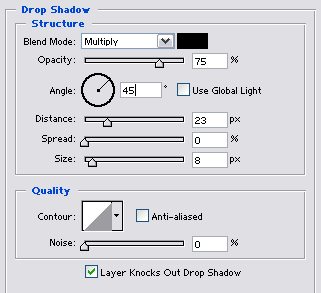
4. Finally, add a drop shadow with these settings.
Job done!