1. Create new image... any width x height
2. Use the Paint Bucket Tool
 with this color (or another) #008B07
3. Go to: Filter -> Artistic -> Sponge:
Brush Size: 5
Definition: 12
Smoothness: 5
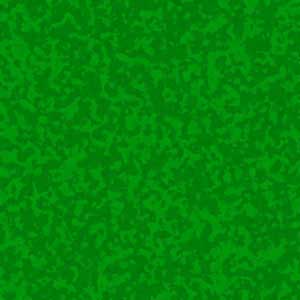
4. Go to: Filter -> Artistic -> Dry Brush:
Brush Size: 2
Brush Detail: 8
Texture: 1
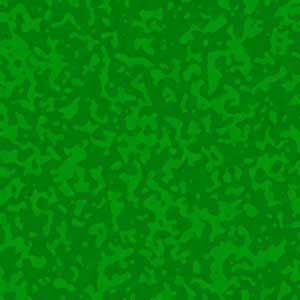
5. Go to: Filter -> Artistic -> Smudge Stick:
Stroke Length: 2
Highlight Area: 0
Intensity: 10
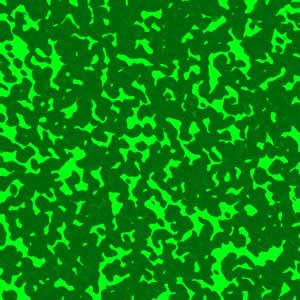
6. Go to: Filter -> Blur -> Motion Blur:
Angle: 0
Distance: 10 Pixels
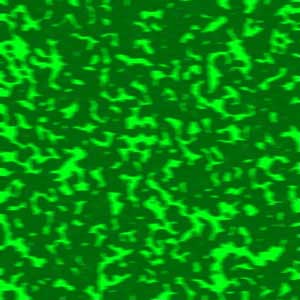
7. Go to: Filter -> Brush Strokes -> Angled Stroke:
Direction Balance: 50
Stroke Length: 15
Sharpness: 3
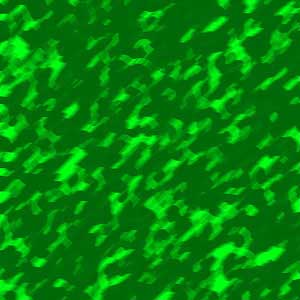
9. Go to: Filter -> Brush Strokes -> Crosshatch
Stroke Length: 9
Sharpness: 6
Strength: 1
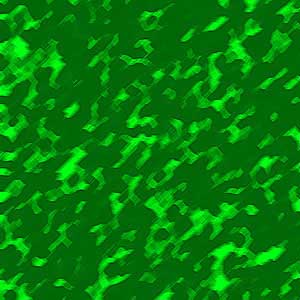
10. To final: go to: Filter -> Stylize -> Glowing Edge, two times:
Edge Width: 2
Edge Brightness: 6
Smoothness: 5
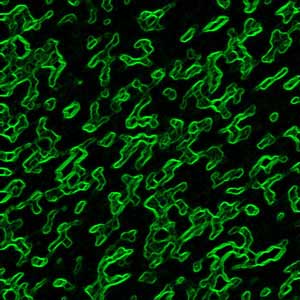
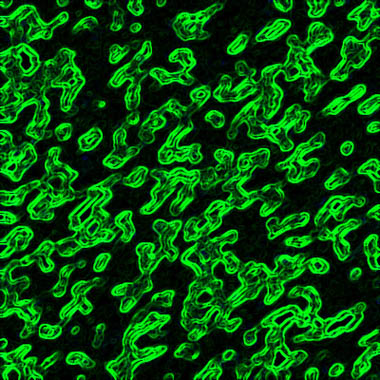
11. You now got this effect!!: