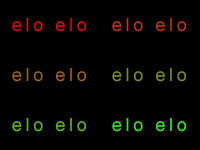
1. Open/create image
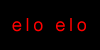
2. Duplicate layer with text change its color:
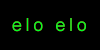
3. Find "Animation" window on the bottom of screen and click "Duplicate current frame" button.
4. Now we have two frames. Click on 1st and hide layer with green text (to hide click an eye next to the layer)
5. Click on 2nd frame and unhide layer with green text. Now it should looks like here:
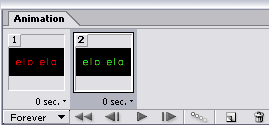
6. Now find and click "Tween" button. It's next to "Duplicate current frame":

7. Now tween window should appear. Change value of "Frames to Add". The higher value = the smoother and longer animation.
8. New frames should appear and full animation will looks so: