

1. Create new black document
2. Get good set of grunge brushes. Of course you can use one, like this: http://rapidshare.de/files/13168612/crazymind_brushes.abr.html
But if you will mix few sets it will looks better.
3. Use small sizes of brushes (~50) and draw flame-alike shape:
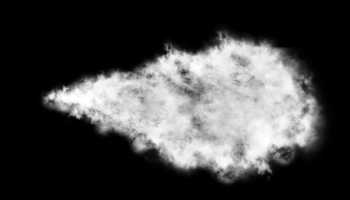
4. Color Balance
Click Layer>New Adjustment Layer>Color Balance
and set values to:
Shadows: 0 0 0
Midtones: +100;
-39; -97
Highlights: +93; +1;
-35
Voila:
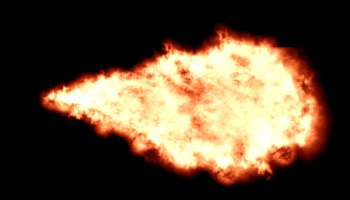
and 2nd version:
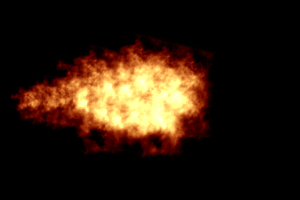
4. Hint
If u see too bright or too dark areas, use Burn and Dodge tools ;)
