

Make a new image. 150x150.
Edit > Fill > 50 Grey.

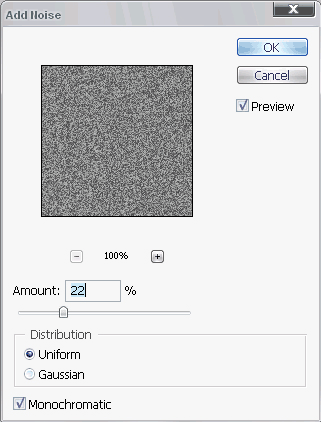
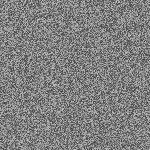
Then go to Filter > Noise > Add Noise with the amount set to 22%. Make sure the distribution is set to uniform and monochromatic is checked.
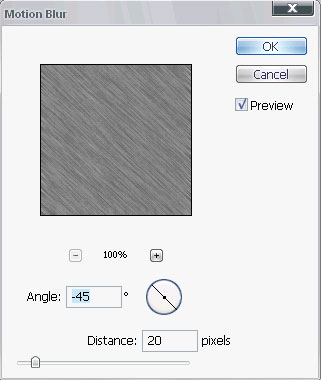
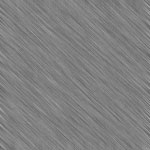
Now go to Filter > Blur > Motion Blur. Make sure the angle is set to -45 degrees and the distance is set to 20px.
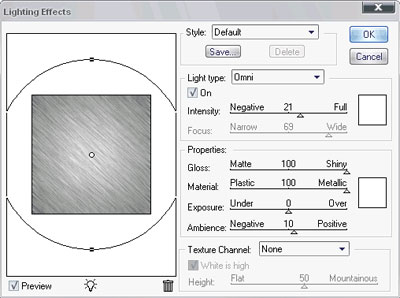
Now go to Filter > Render > Lighting Effects and make sure they are these settings::
Light Type: Omni
Intensity: 21
Light Colour: #FFFFFF
Gloss: 100
Material: 100
Exposure: 0
Ambience: 10
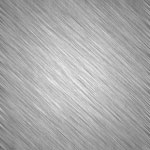
Feel free to change some steps to make it better and nicer. Also you can use this for anything, and any style.
