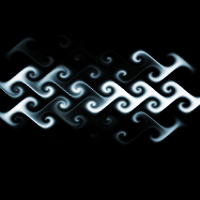
Create a new document of any size you want. I made mine 600x600
Now go to Edit->Fill
in the box that popup, select "Pattern" for "Use", and in the Custom Pattern option, select this pattern
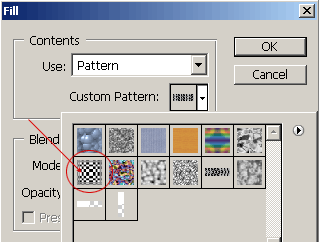
Then click OK
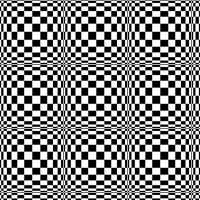
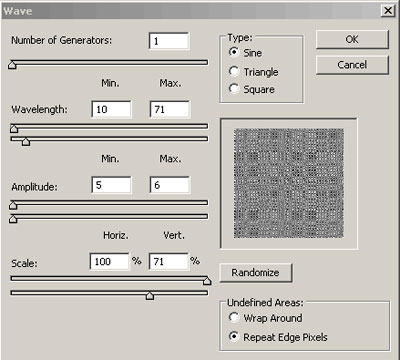
Now go to Filter->Distort->Wave
Adjust your setting so its similar to mine:
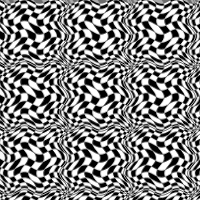
Now just hold down the CTRL key, and press the "F" key 10 times (reapply the wave effect 10 times). Now you should get something very similar to mine on the left.
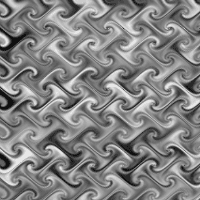
Now to give it a little bit of color, you can use the Hue and Saturation option, Image->Adjustments->Hue/Saturation. Make sure you check the "Colorize" box. Set the "Hue" bar to: 210, "Saturation" to: 14, leave the Lightness at 0.
Next, to make the image a little sharper, go to Filter->Sharpen->Sharpen
There you go :)
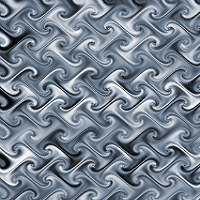
You can also apply this trick to any type of shapes or patterns, see my examples of before and after images below.