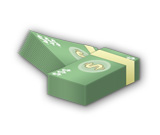
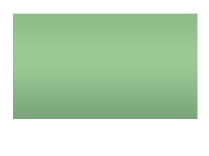
Start by creating a rectangle using rectangular shape tool.

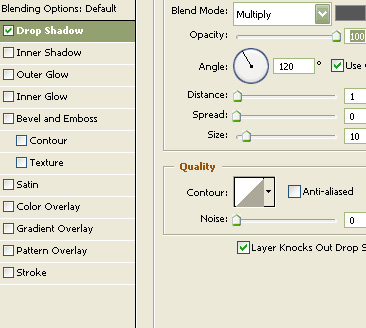
Double click the layer to open layer style window. Apply layer style with the settings shown.
Create a circle using elliptical shape tool.
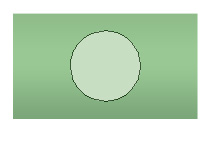
Create another circle using elliptical shape tool. Fill it with slightly darker shade.
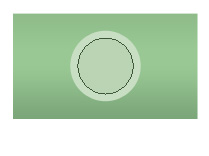
Type "$" and place it over the circle.
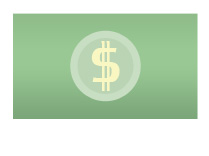
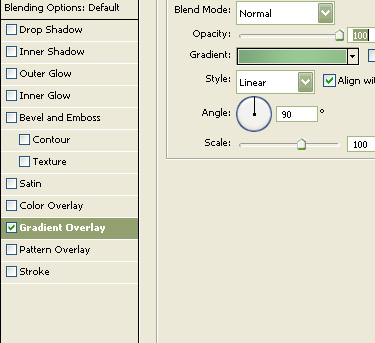
Double click the layer to open layer style window. Apply layer style with the settings shown.
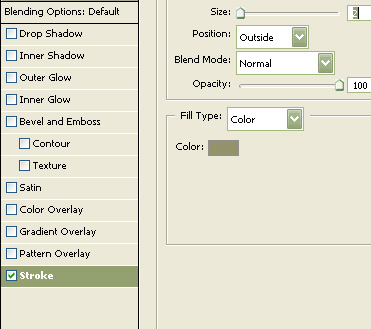

Create some more $ and place as shown.

Select and merge all the layers. Press Ctrl+T. Right click the layer and select distort. Adjust nodes to get the shape as shown.
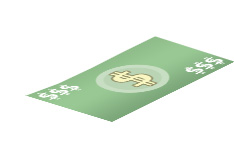
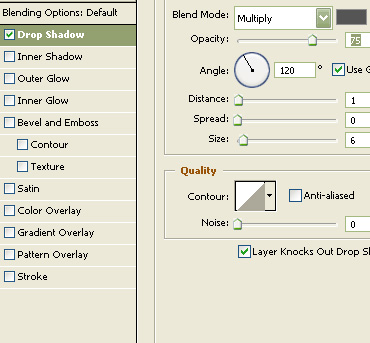
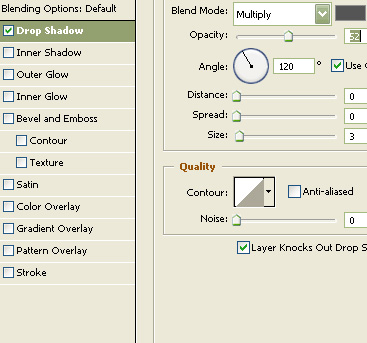
Double click the layer to open layer style window. Apply layer style with the settings shown.
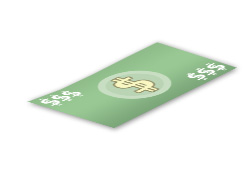
Duplicate the layer. Move it a few pixels downwards. Move this layer below all the layers in layer order in layer palette.
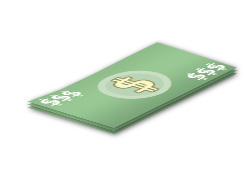
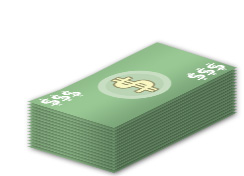
Create a paper band using pen tool.
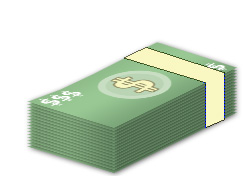
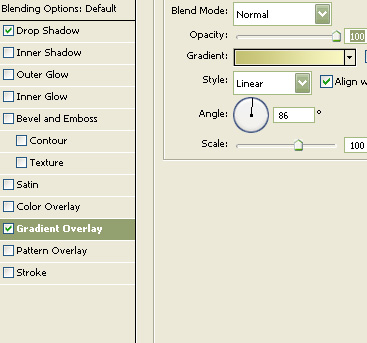
Double click the layer to open layer style window. Apply layer style with the settings shown.
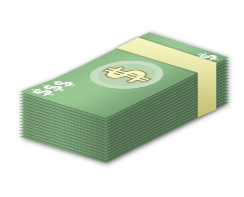
Select and merge all the layers. Duplicate the layer. Press Ctrl+T. Right click the layer and select distort. Adjust nodes to create another bundle of currency.
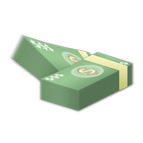
Double click the layer to open layer style window. Apply layer style with the settings shown.