Step 1: Open a new document (400x100 pixels with white background)
Step 2: Reset your colors to the default. Grab the Gradient tool.

Now with your gradient tool press randomly and crazily around the canvas until you get something similar to something below.
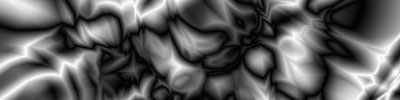
Step 3: Go to Filter--> Distort--> Polar Coordinates and use "Polar to Rectangular". Your image should now look like what I've got below.
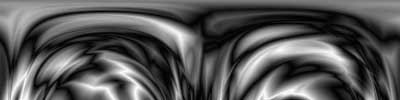
Step 4: Now to use the wave effect, go to Filter--> Distort--> Wave.
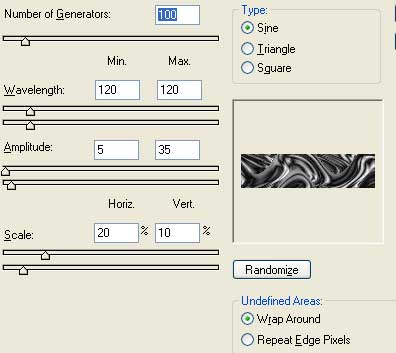
Feel free to play with those settings to get different effects.
Step 5: Go to Filter--> Blur--> Gaussian Blur (radius 0.3 pixels) to get rid of the rough edges.
Step 6: Pretty dull still hey? Well now to give it color. First invert the colors by pressing Ctrl + I. Bring up the Hue/Saturation box. Use these settings.
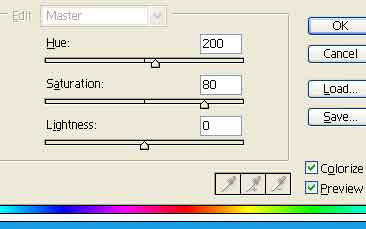
Also make sure the Colorize box is checked and feel free to play around with these settings to get the color of your choice.
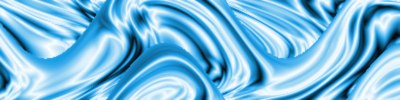
Final Product
Congratulations! You have created a Liquid Flow effect! Below is the final product we created from this tutorial.