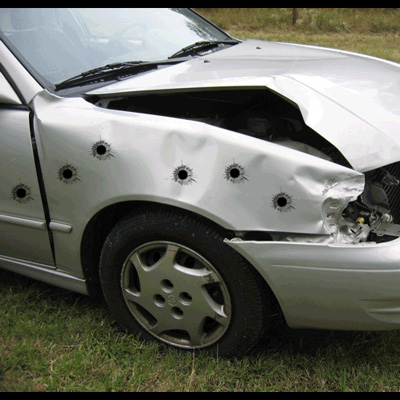
Nobody likes getting shot. But a action-packed photo looks much cooler with a few bullet holes in the wall!
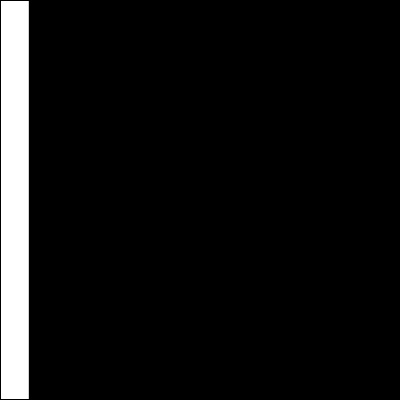
Step 1 Open a document of a large size and add a white rectangle on a new layer in the left corner
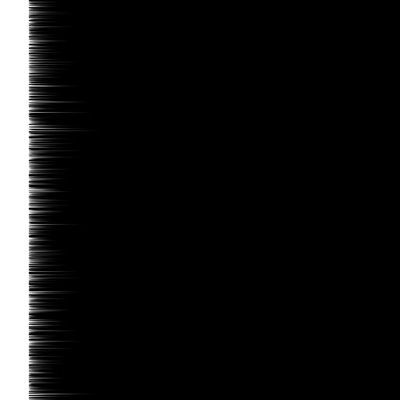
Step 2 Add some wind Filter>Stylize>Wind and choose wind from the left
Step 3 Rotate the canvas by going to Image>Rotate Canvas>90° CW
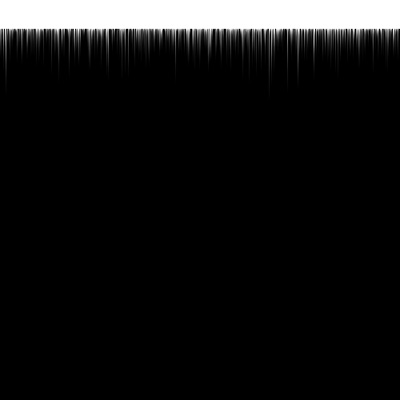
Step 4 Press CTRL+E to merge the 2 layers and go to Filter>Distort>Polar Coordinates and make sure it's gonna get round
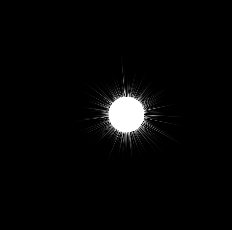
Step 5 Press CTRL+I to invert the image
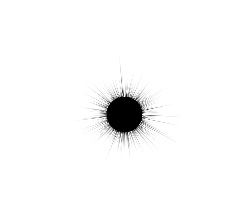
Step 6 Go to Select>Color Range and click anywhere on the white part, then ok. Then you need to press delete.
After that, get out your picture of the texture you need to put the bullet hole on;
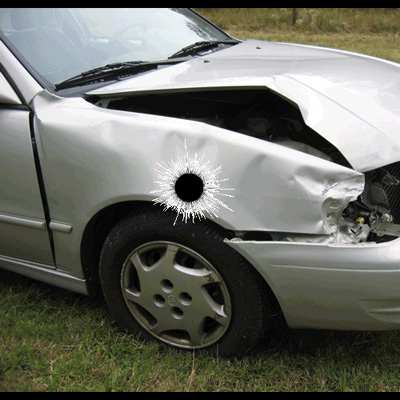
Step 7 Add these settings to it
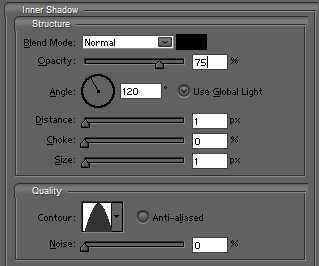
Step 8 Now don't rasterize it or merge it with another layer! Just leave it as it is with the layer-styles still active!
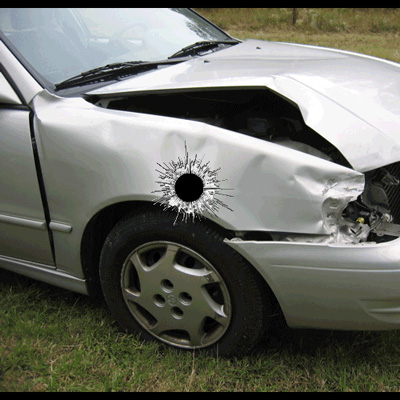
Step 9 Then duplicate the layer and resize it to a nice amount! (Always make the bullet hole bigger then you want it!)