


Result will be like that:

Create a new file in Photoshop with any size, i took 300x300.
Fill it with black. Leave Background color as white.

Choose Gradient tool.
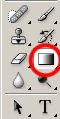
In Gradient tool's options choose Difference mode, and click on Linear Gradient :

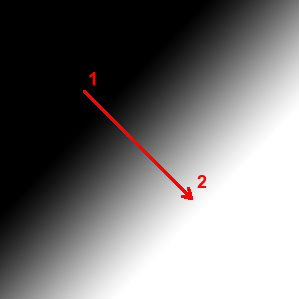
Now go ahead and click with your left mouse button somewhere close to 1, and move it to 2. You should get something like that:
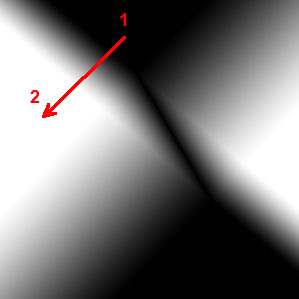
Do the same from 1 to 2:
Repeat it again:
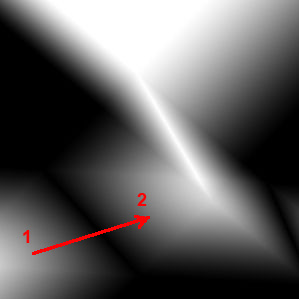
And repeat this operation about 20-30 times:
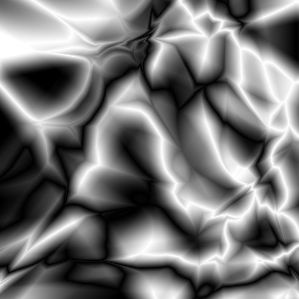
Filter-Stylize-Find Edges:
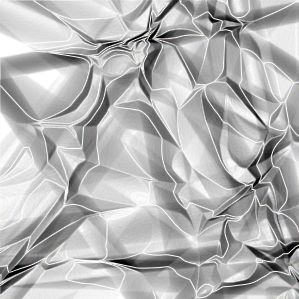
Now invert colors:Image-Adjustments-Inverse:
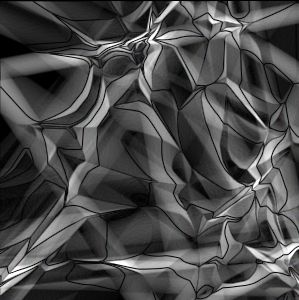
Beautiful, but needs colors for sure.Let's colorize it! Image-Adjustments-Hue/Saturation
Don't forget to click on Colorize.
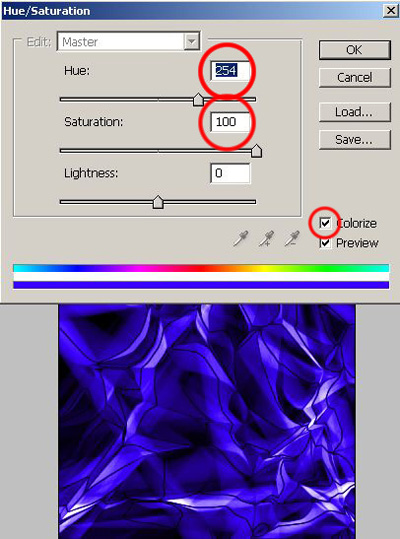
Looks like underwater picture in a sunny day :0)

It's time to add some stylish text. You can use any font. I used Ben Pioneer. It's easy to install it. Unpack it to any folder, and go to Start-Control Panel-Fonts, and choose File-Install New Font. In the left small window find our font, and unclick Copy fonts to Fonts Folder, that way you can easily uninstall this font in case you don't like it.
I'll make my text blue (don't worry, that it doesn't look cool yet):0):

Add some outer glow: Layer-Layer Style-Outer Glow:
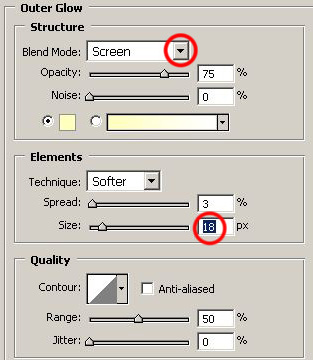
Much better!

Add some inner shadow as well: Layer-Layer Style-Inner Shadow.
Leave everything as it is:
You CD cover is ready. Good job!
