

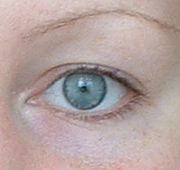
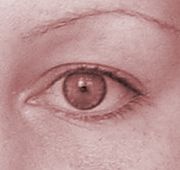
Original picture:
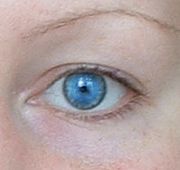
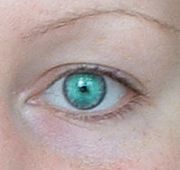
Result (you can make any eye color):
Open any photo in Photoshop.
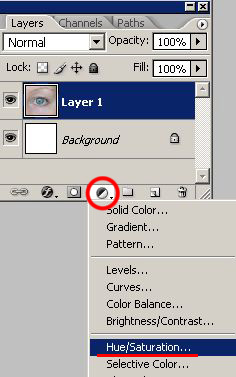
Create a new adjustment color: Layer-New Adjustment Layer-Hue/Saturation:
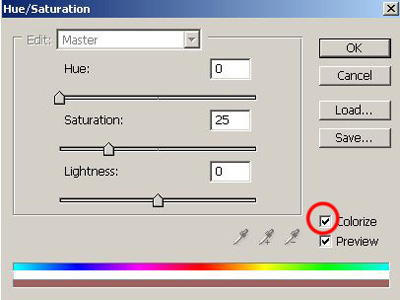
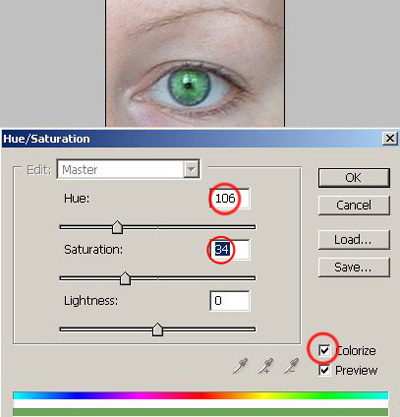
In Hue/Saturation window click on Colorize, and don't change anything else:
If you see your picture colorized, you are on a right way :0) :
Press D on your keyboard to set default foreground and background colors- black and white.
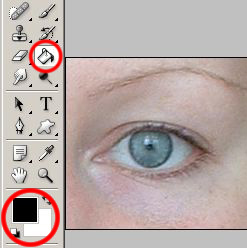
Then choose Paint Bucket, and fill up your picture with black. As a result you should see original colors:
Here is the most interesting part!
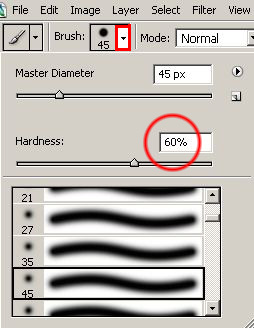
Choose soft Brush tool, and set Hardness to 60%, and choose a size that is a little bit smaller than the iris:
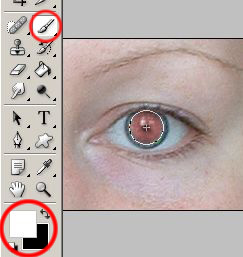
Press X on your keyboard to change foreground and background colors, and click with your brush on the iris:
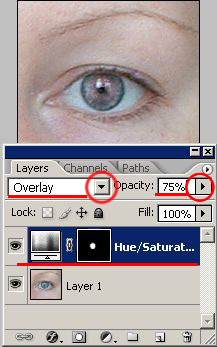
Now in the layers window change mode of adjustment layer to Overlay, and it's Opacity to 75%:
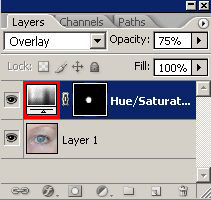
Now double click on the following part of the adjustment layer:
And with two upper sliders choose any eye color you want. If you put 106-34-0 the eyes will be green:
To get blue color put 212-48-0:
If you put 360-33-0 you'll see something like that:
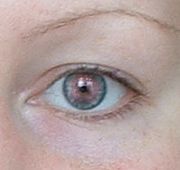
173-40-0:
Have fun with eye color changing! :0)
