

Result:
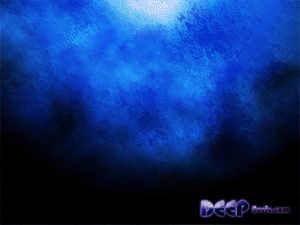
Ok, let's start.
1. Create a new file, i usually use 1024x768 size to fit my screen. Take a Gradient Tool and make a new gradient:

To do that just double click in the gradient picture:

Use sliders and make a new gradent:

Change to Radial gradient:

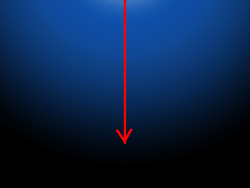
Click and drag as shown:
2. Make a new layer and set foreground color to dark blue and background to plain white:

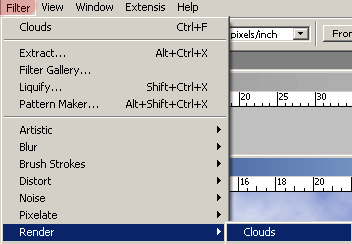
Filter-Render-Clouds:
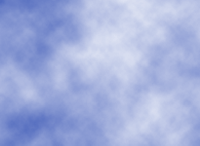
You should get something like that:
Filter-Distort-Ripple:
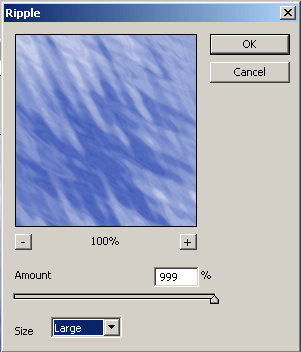
Change it's size from Large to Medium. Here we go:
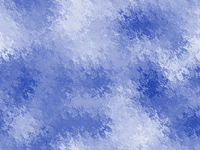
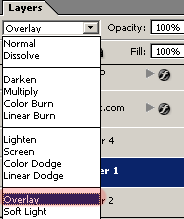
Change it's mode from Normal to Overlay:
Looks like deep sea already:
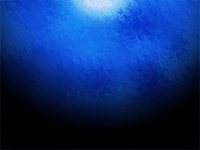
3. Final part- make another layer. Hit D on your keyboard and use Filter-Render-Clouds again, just change it's mode to Overlay. You can add some text and that's about it:
Good luck!
