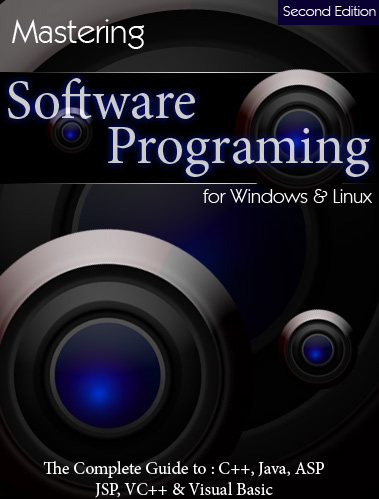
Start by creating a circle using elliptical shape tool.
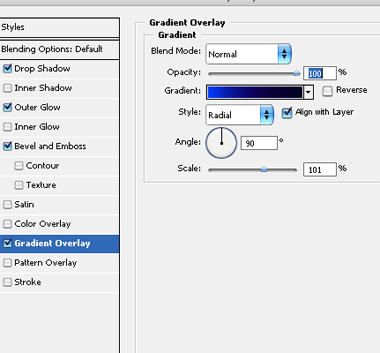
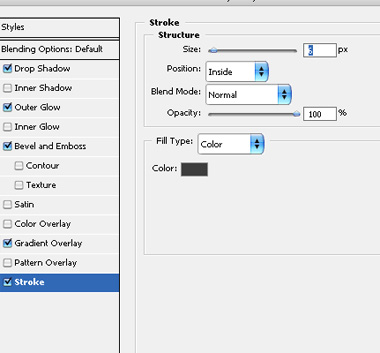
Double click the layer to open layer style window. Apply settings as shown.
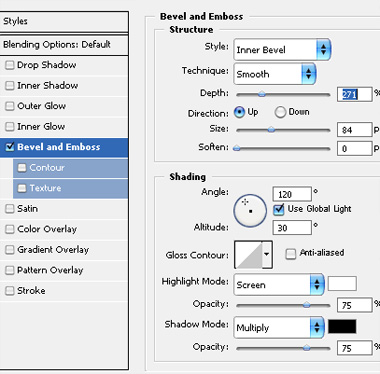
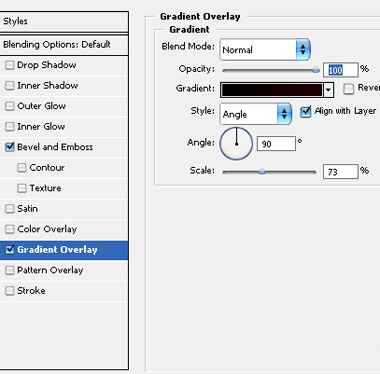
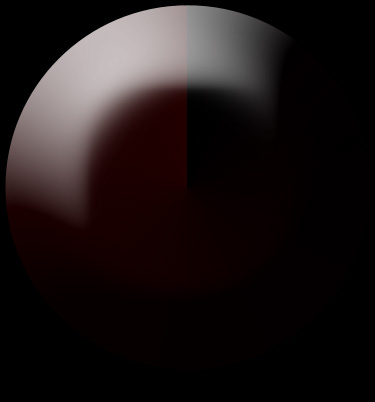
Duplicate the layer and scale it down. Remove the layer style.
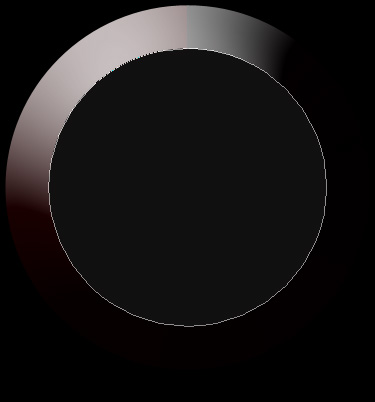
Double click the layer to open layer style window. Apply settings as shown.
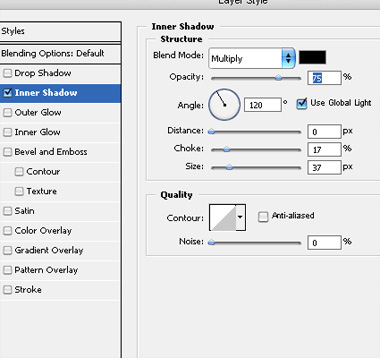
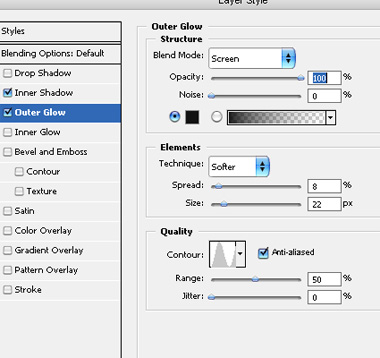
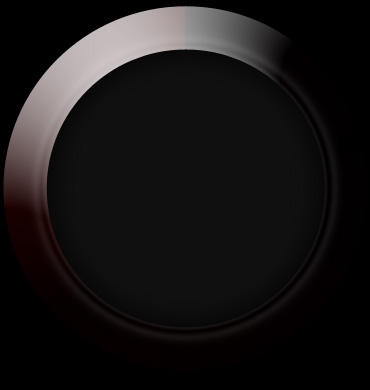
Duplicate the layer again. Scale down and remove the layer style.
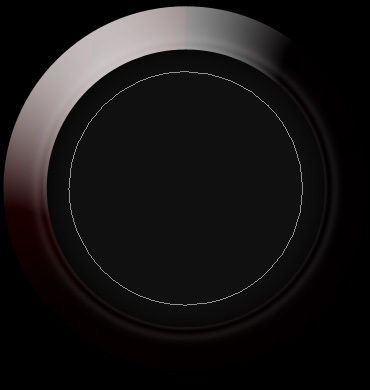
Double click the layer to open layer style window. Apply settings as shown.
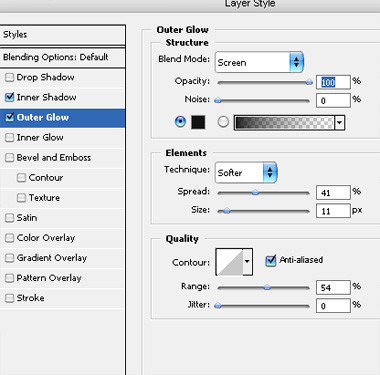
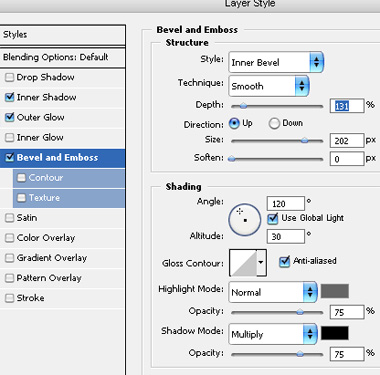

Duplicate the layer . Scale down to 50%. Remove the layer style.
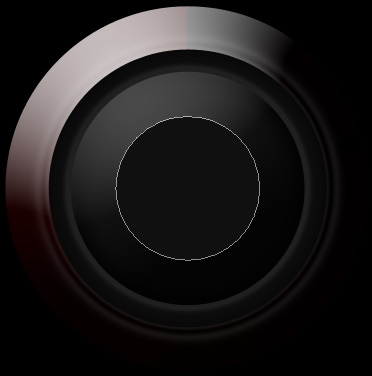
Double click the layer to open layer style window. Apply settings as shown.
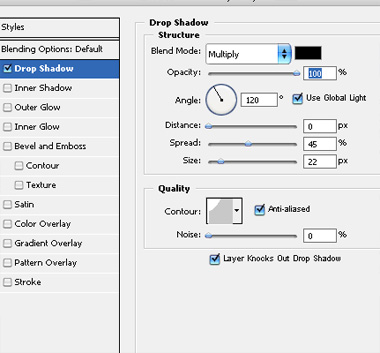
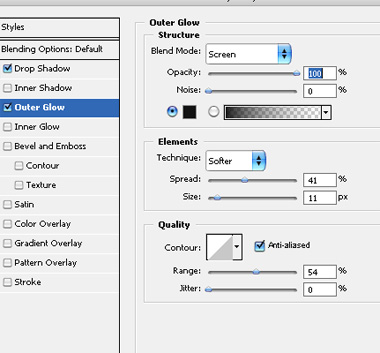
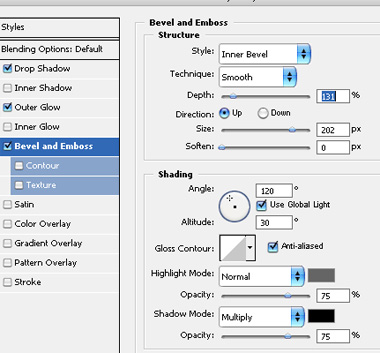

Select and merge all layers. Duplicate the layer several times. Scale down and place as shown. Reduce the opacity of biggest circle.

Create a rectangle using rectangular shape tool. Move this layer just above the biggest circle layer in layer order in layer palette.

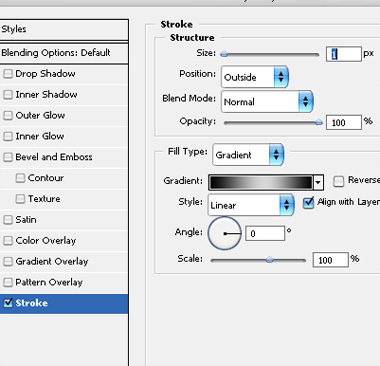
Double click the layer to open layer style window. Apply settings as shown.

Type in all the details. You can use it as a background for book cover, flyer, poster, signature background etc.