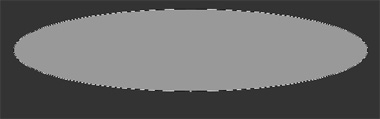
Create an ellipse using elliptical shape tool.
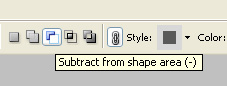
Enable subtract form shape area form the top bar.
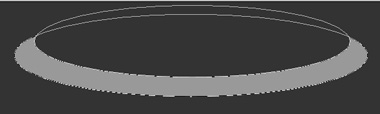
Create another ellipse using elliptical shape tool as shown.
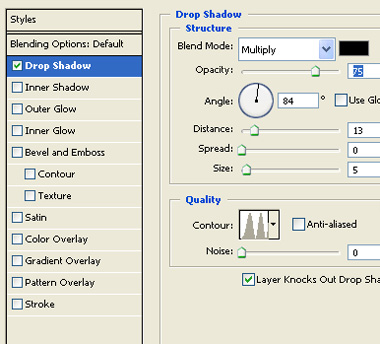
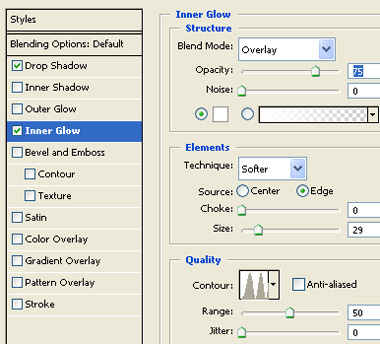
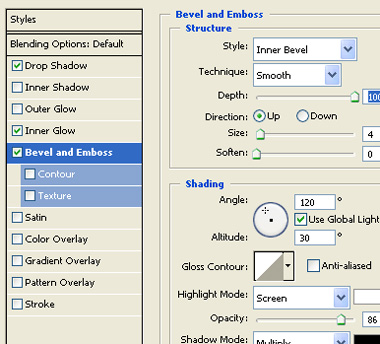
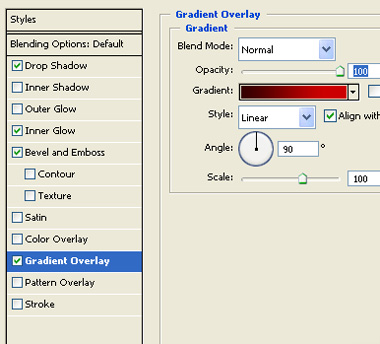
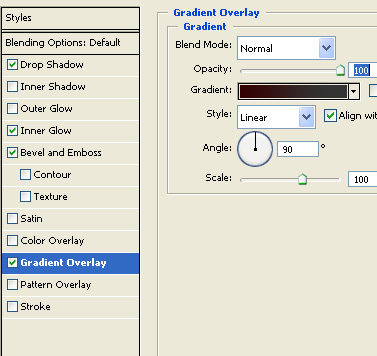
Double click the layer to open layer style window. Apply layer style with the settings shown.

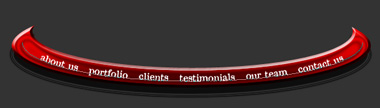
Using pen tool create a curve path over this shape.
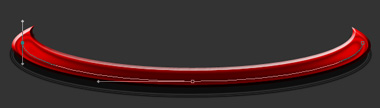
Using type tool click on this path and enter button links.
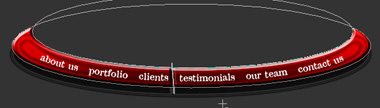
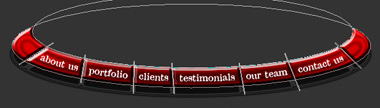
Select the layer containing elliptical shape. Select line tool. Keep subtract from shape area enabled at the top bar and draw lines for the dividers.
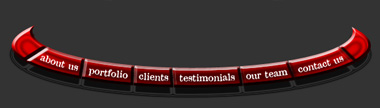
Using pen tool create a shape as shown below.
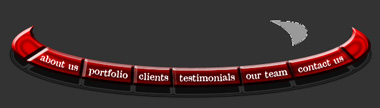
Copy layer style from the elliptical shape layer and paste on this small shape layer.
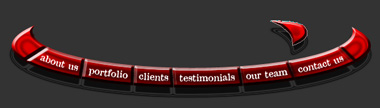
Double click the layer to open layer style window. Adjust gradient color of the gradient overlay.

Duplicate this shape layer. Scale down and place as shown.

Duplicate both small shape layers. Press Ctrl+T. Right click the layer and select flip horizontal. Move it to the other side.

Insert company logo on top of the header.