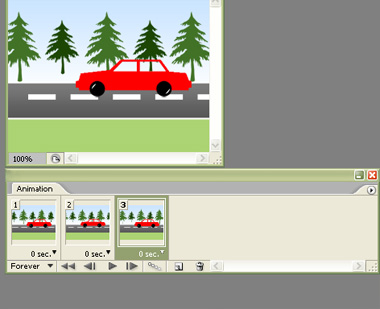
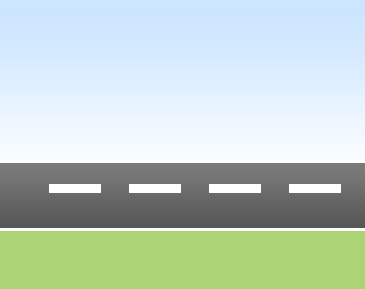
Start by creating sky area by applying a light gradient on the background.

Create the ground using a rectangle and fill it with green color.

Create another rectangle above the green rectangle. This'll serve as a road shape.

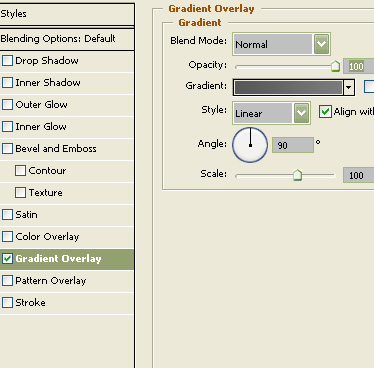
Apply following layer styles.
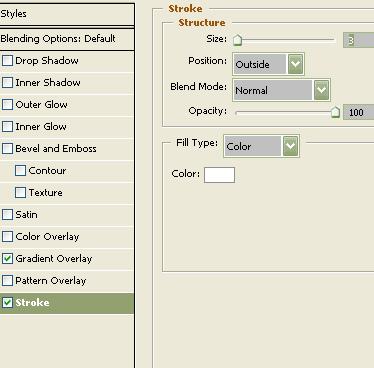
Create a small horizontal rectangle in the center of road.

Duplicate the rectangle .
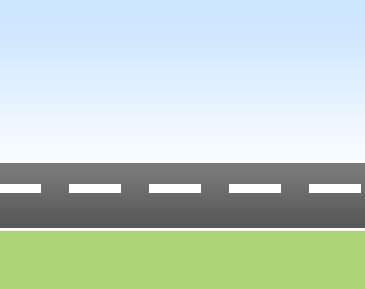
Merge all the small rectangle layers. Duplicate the merged layer, and press Shift+Right Arrow 2imes. Hide the original layer.
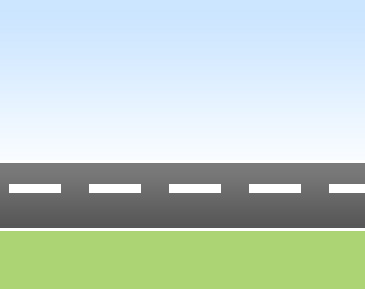
Similarly create another duplicate of the previous layer and move it 2 times.
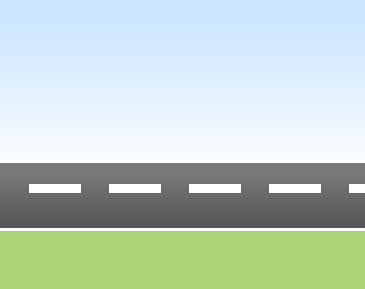
Create one more duplicate similarly.
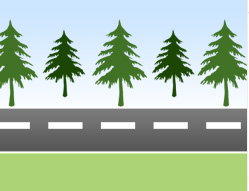
Using custom shape tool create a tree.
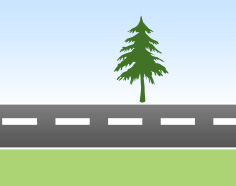
Populate the area with more trees.
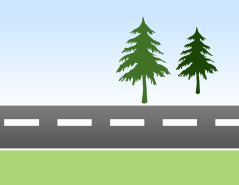
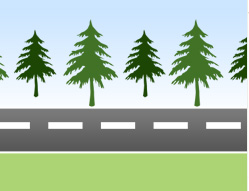
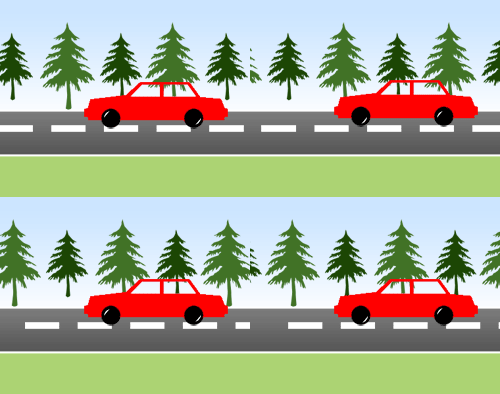
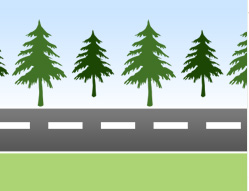
Merge the tree layers. Create similar number of duplicates and move as you did for the road paint layer.
Create a car shape using custom shape tool.
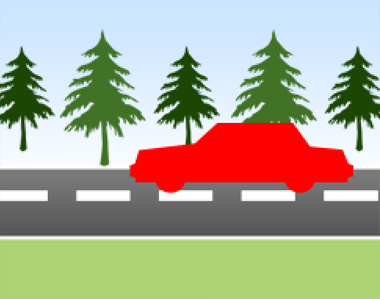
Draw circles for wheels.
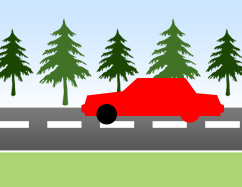

Merge car and wheel layers. Knock out areas for car windows. Duplicate the car layer. Move a few pixels up. Hide this layer.
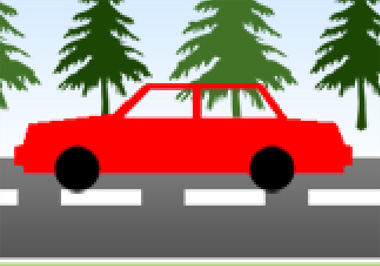
Add a couple of glints using a small white brush on the car wheels.
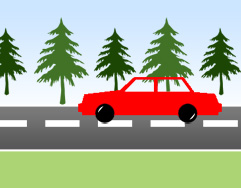
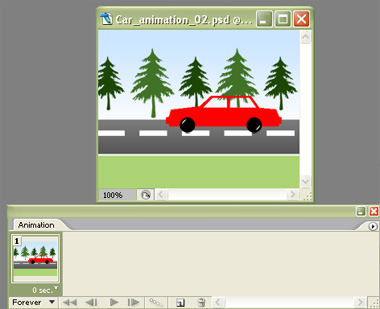
Open animation window. For the first frame hide the all the duplicate layers of road paint, tress and glint on wheel except the initial ones.
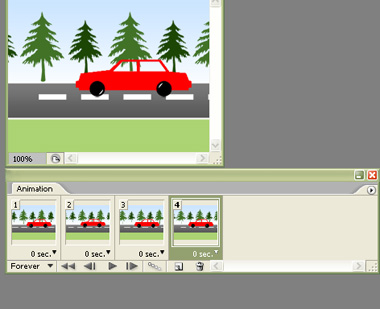
Duplicate the frame. HIde the initial positions of different elements and unhide the second position/layers of the elements.
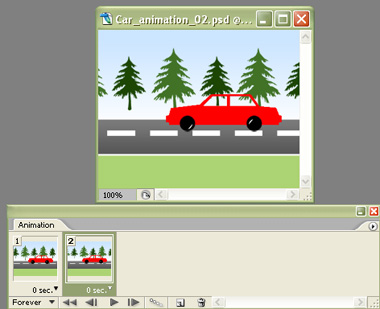
So on and so forth repeat the procedure till four frames.