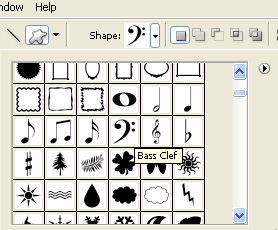
Start by creating a bass clef shape using custom shape tool.

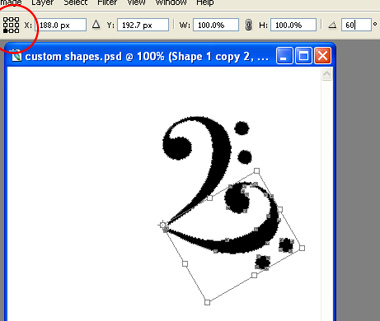
Select the shape path using direct selection tool. Press Ctrl+C and Ctrl+V to duplicate the path. Now press Ctrl+T and change the anchor point to bottom left. Rotate the layer 60°.
Similarly duplicate the path and rotate till you complete 360°.
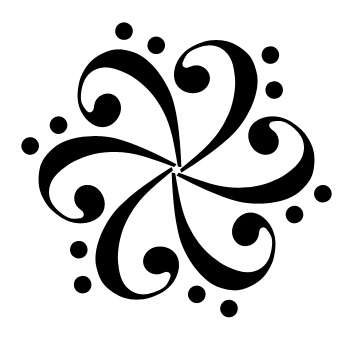
Hide the layer. Create a eight 3 shape using custom shape tool.
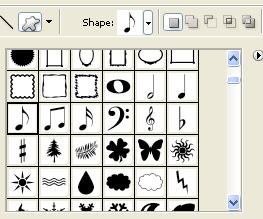

Repeat the above step to create a circular pattern of this shape.
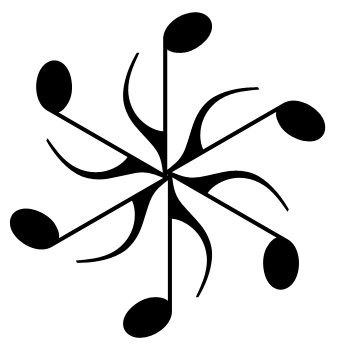
Select the whole path using path selection tool. Copy the path by pressing Ctrl+C.
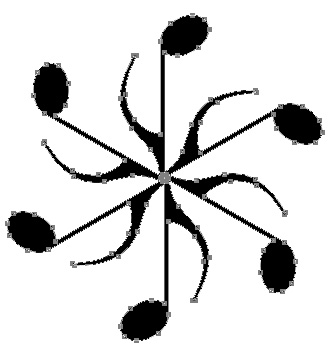
Unhide and select the bass clef layer. Using path selection tool select the whole path.
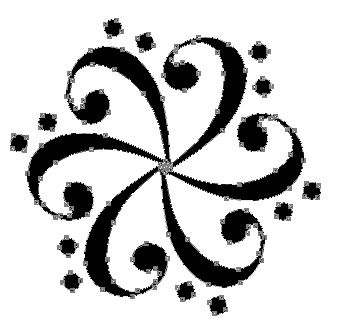
Enable exclude overlapping shape areas form the top bar and press Ctrl+V to paste the path that we copied previously.
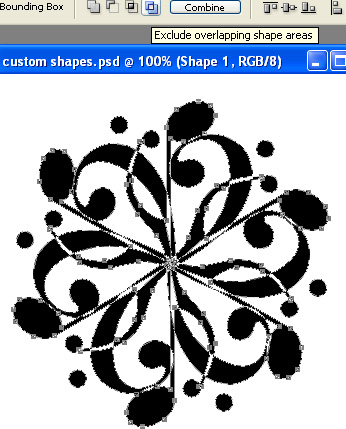
Press Ctrl+T and scale down the path.
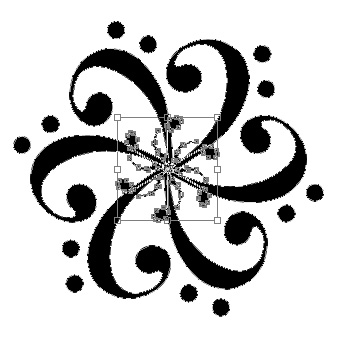
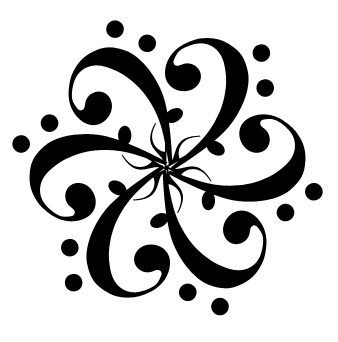
Select seal shape using custom shape tool.
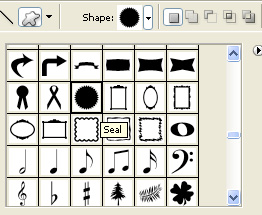
As the exclude overlapping shape area is still enabled create seal shape as shown.
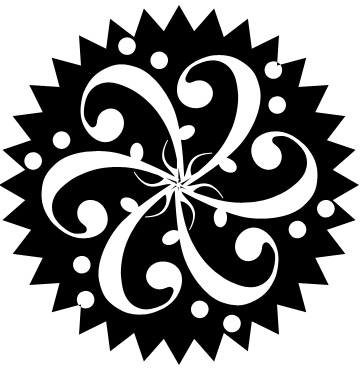
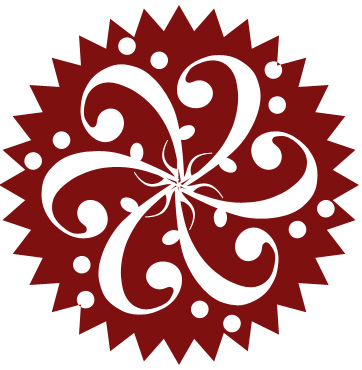
Select the path. From edit menu select create custom shape. Name it suitably. Now take any foreground color. Create a new file or layer and draw this shape using custom shape tool.