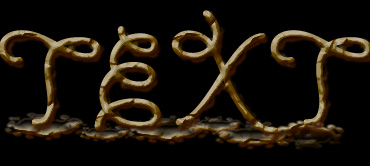
Start by typing text in a new file.
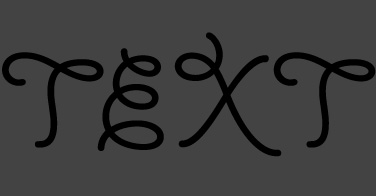
Ctrl+Click the layer thumbnail to get the selection. Press Q to enable quick mask.
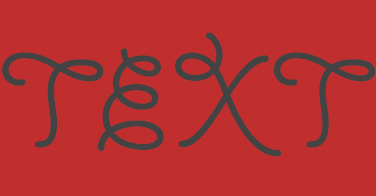
From filter menu select distort>>glass. Apply settings as shown.
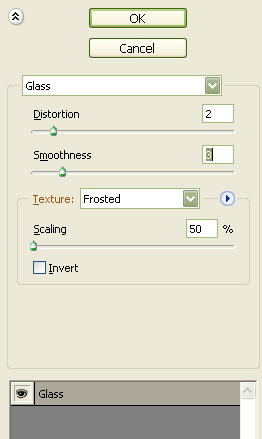
Add new effect layer from the bottom of the effect window. Select sketch>>plaster. Apply settings as shown.
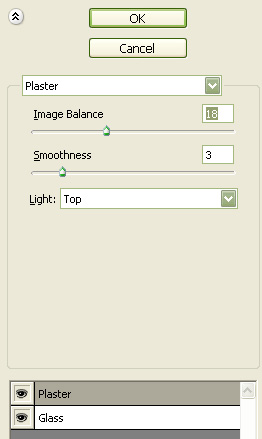
Press Q to disable quick mask.
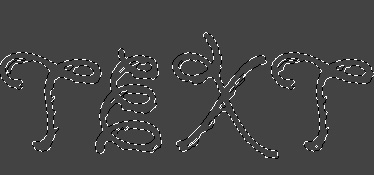
Create a new layer and fill it with white color.
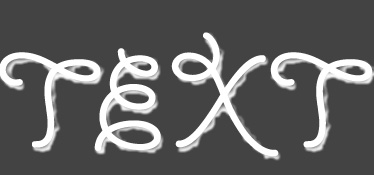
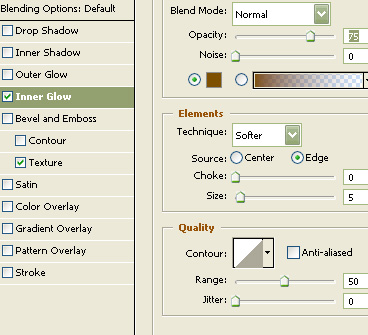
Double click the layer to open layer style window. Apply layer style with the settings shown.
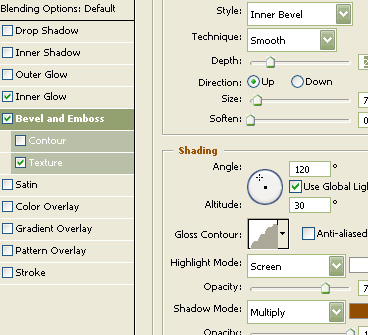
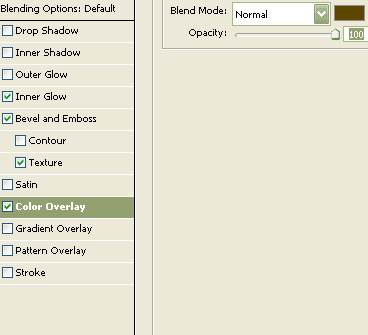
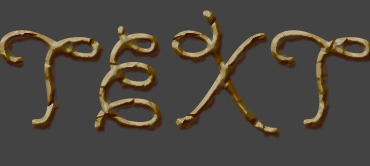
Create an elliptical selection using elliptical marquee tool.
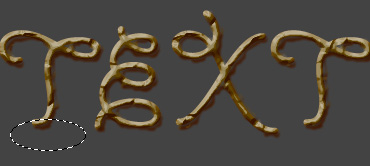
Press Q to enable quick mask. Repeat the above steps to reapply the filters we used previously. Press Q to disable quick mask.
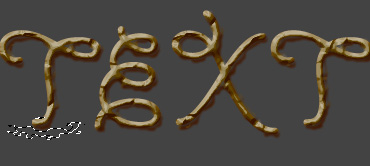
Create a new layer and fill it with any color. Apply the same layer style we used for text layer.
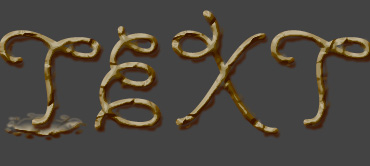
Similarly create more shapes below the other alphabets.
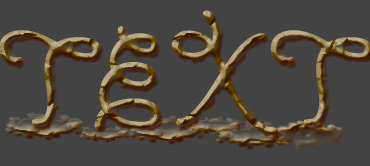
Fill the background with black color.