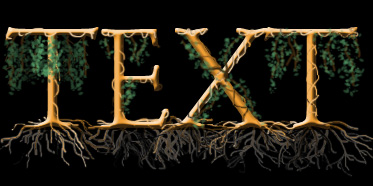
Start by typing your text.

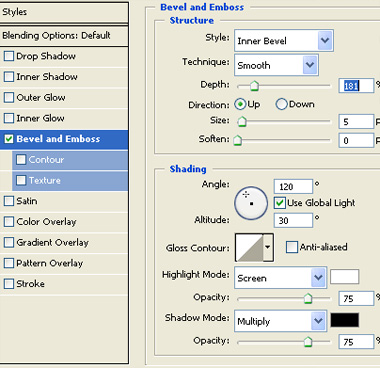
Double click the layer to open layer style window. Apply layer style with the settings shown.

From layer menu select layer style>>create layers. Merge both the layers. Select smudge tool from the main tool bar with the settings shown.

Drag the mouse over the edges of the alphabets to create random shaped roots.
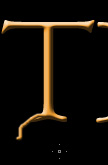
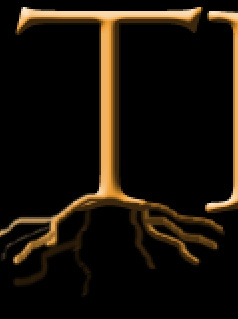
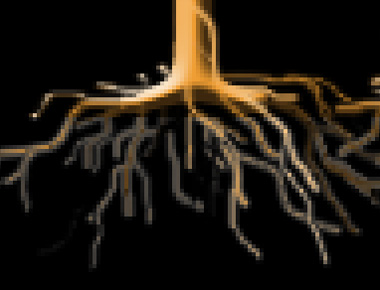
Using smudge tool again create some helping roots surrounding the alphabet.
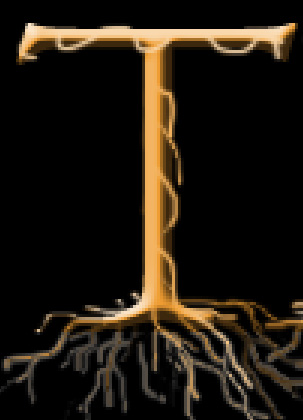

Using brush tool create some hanging lines with branches.
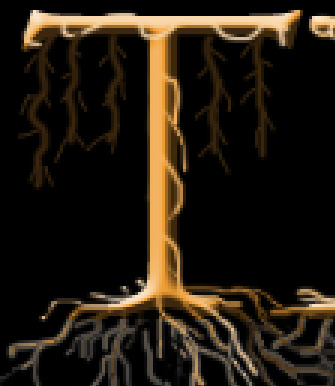
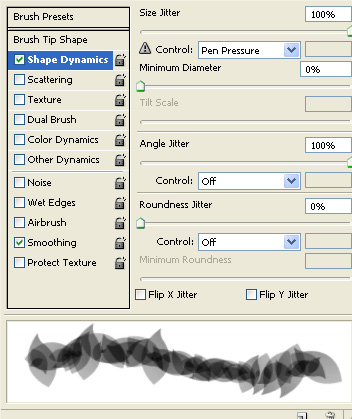
Press F5 to open brush settings. Select leaf brush from the custom brushes. Apply settings as shown.
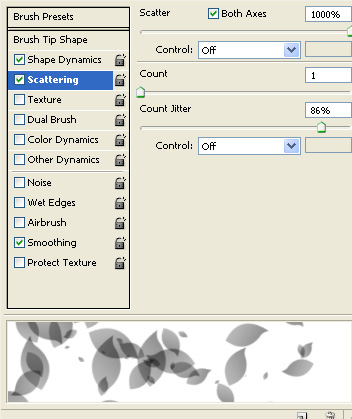
Apply the brush over the alphabets and hanging lines in a new layer.
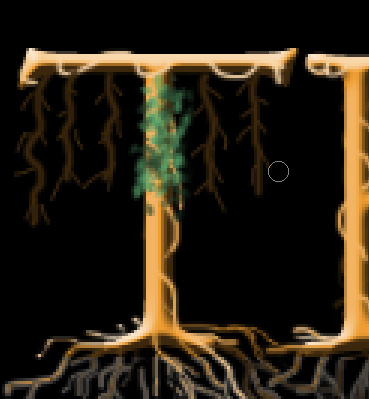
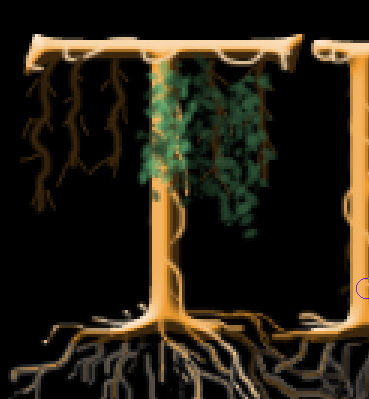
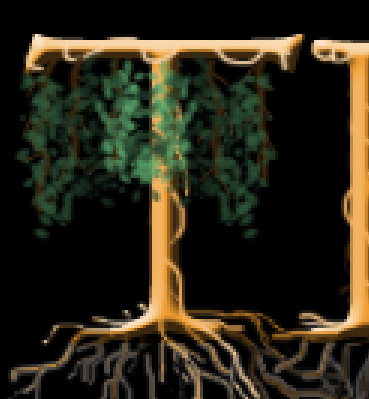
Repeat the steps for other alphabets.