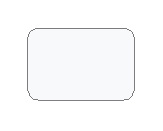
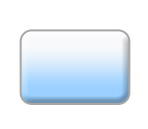
Create a rounded rectangle using rounded rectangle shape tool.
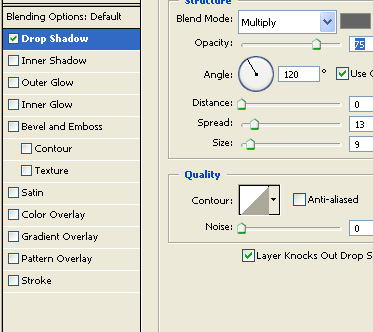
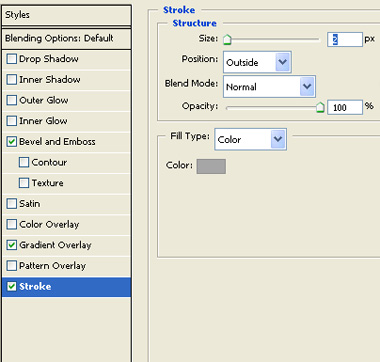
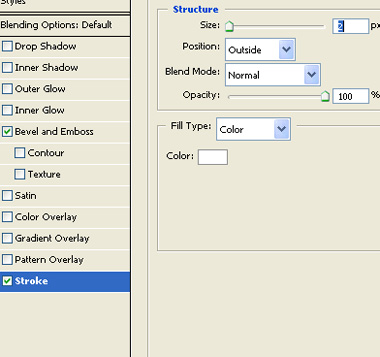
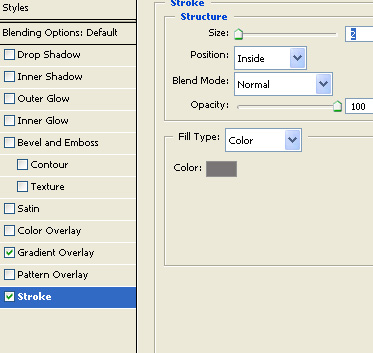
Double click the layer to open layer style window. Apply settings as shown.
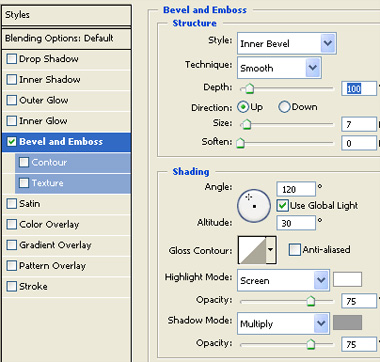
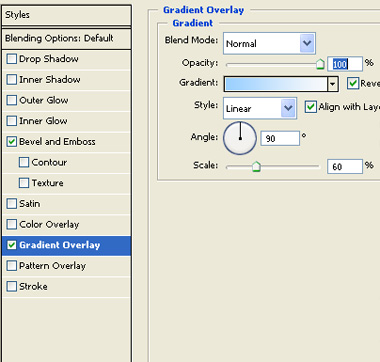
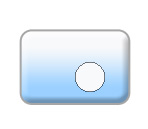
Create a circle for the lens using elliptical shape tool.
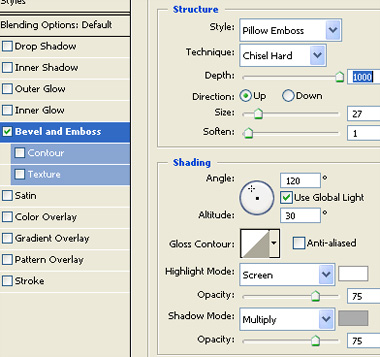
Double click the layer to open layer style window. Apply settings as shown.
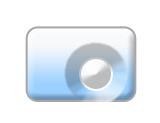
Duplicate the circle layer. Remove layer style.
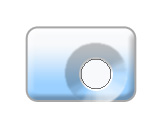
Double click the layer to open layer style window. Apply settings as shown.
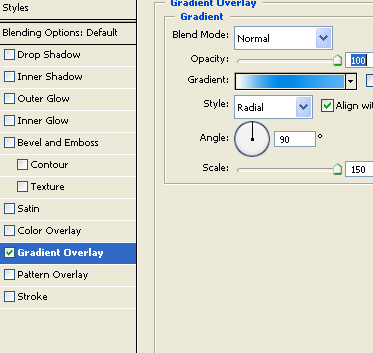
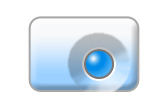
Create a vertical rectangle using rectangular shape tool.
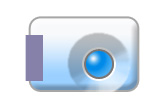
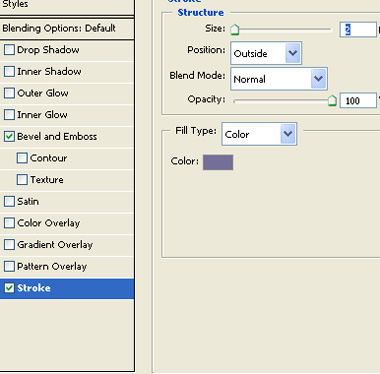
Double click the layer to open layer style window. Apply settings as shown.
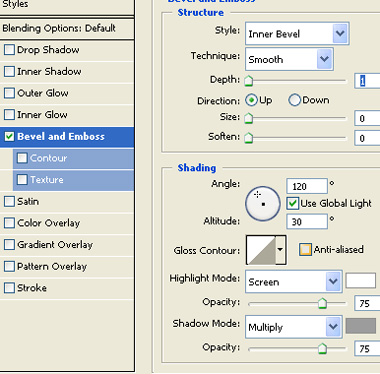
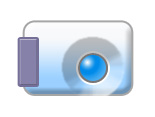
Create a rectangle using rectangular shape tool. Move this layer below lens layer.
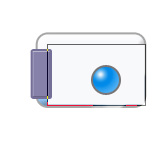
Double click the layer to open layer style window. Apply settings as shown.
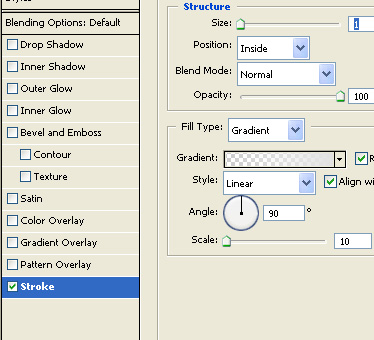
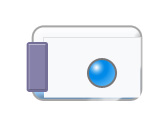
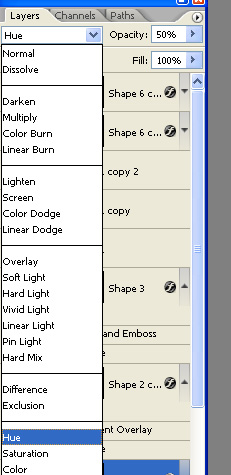
Change layer mode to hue.
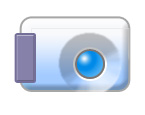
Create a small square for button using rectangular shape tool.
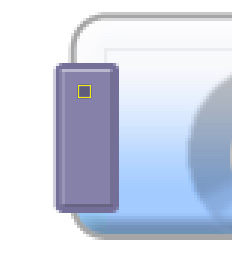
Duplicate this layer. Offset a few pixels and fill with lighter shade.
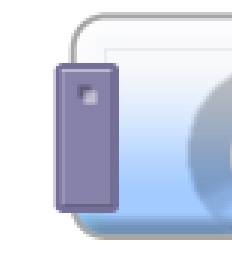
Similarly create more buttons and place below each other.
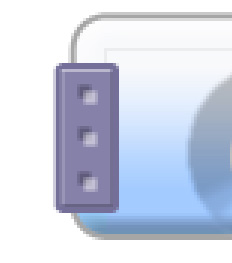
Create a few rectangles of varied sizes on top.
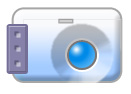
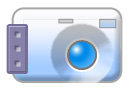
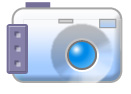
Select the top thin rectangle layer. Double click the layer to open layer style window. Apply settings as shown.
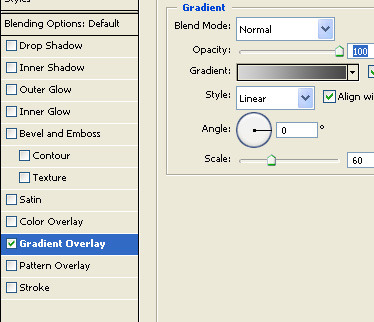
Select all layers. Press Ctrl+E to merge the layers together. Double click the layer to open layer style window. Apply settings as shown.