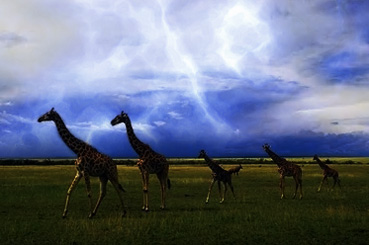
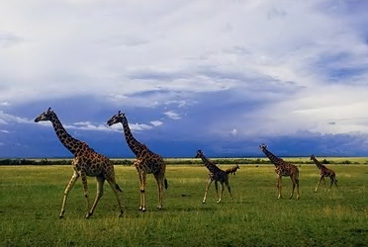
Start by opening an image that's showing some sky area.
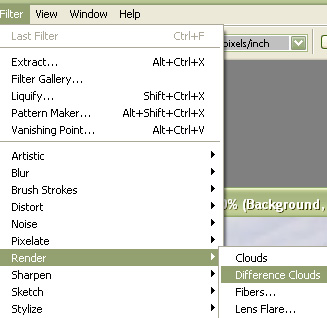
Create a new layer and press Q to enable quick mask. From filter menu select render>>difference clouds.
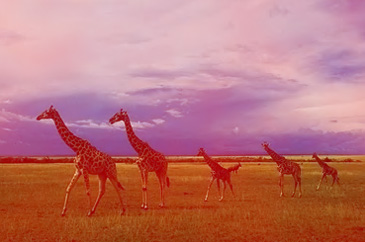
Press Ctrl+F five times to get this result.
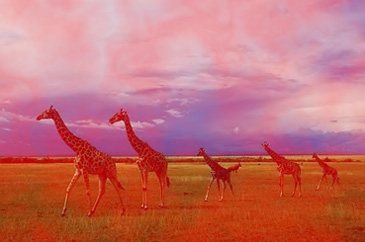
Press Q to disable quick masking.
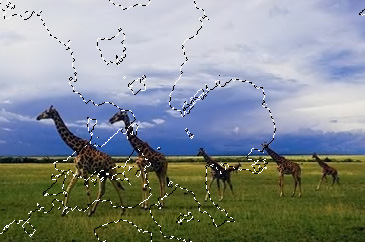
Fill the selection with blue color.
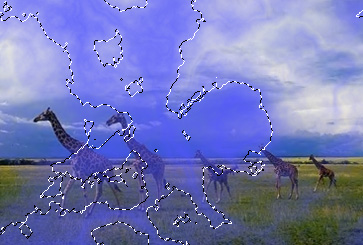
From select menu click modify>>contract.
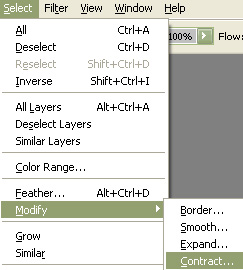
Contract the selection by 2 pixel.
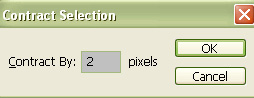
Fill it with white color.
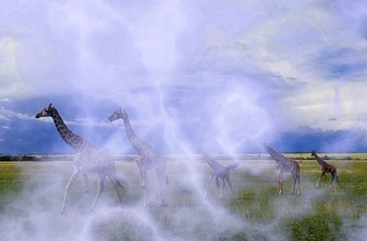
Press Ctrl+L to open level settings window. Apply settings as shown.

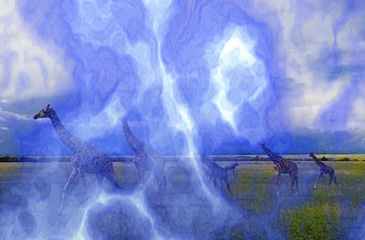
Press Ctrl+T and scale down vertically.
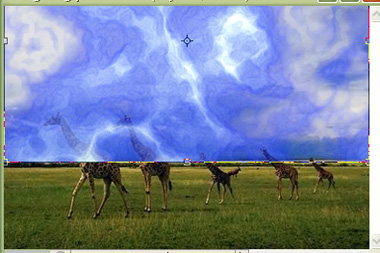
Select eraser tool and remove the unwanted areas.
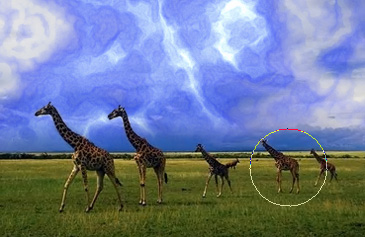
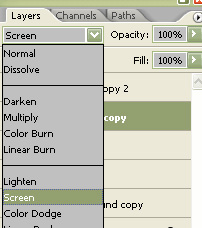
Change the layer mode to screen.
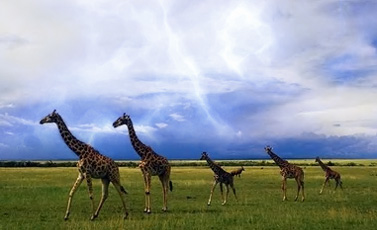
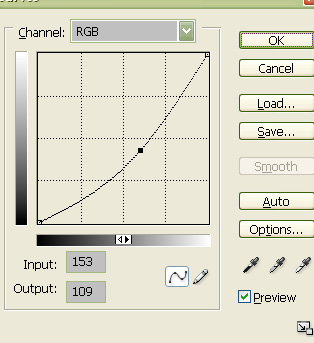
Select the image layer and press Ctrl+M to open curve window. Apply curve settings as shown.